
How to Get the Text of YouTube Video in 4 Simple Methods
- Quick Overview: Comparing the 4 Best Methods
- Method 1: Using YouTube’s Built-in Transcript Feature
- Method 2: Get Text from YouTube Video Using an AI-Powered Tool
- Method 3: Download Text from YouTube Video through Browser Extension
- Method 4: Hire Professional Assistance for Accuracy
- FAQs about Getting Text from a YouTube Video
Quick Overview: Comparing the 4 Best Methods
Before exploring each method in detail, you can first review the table below comparing each method. This will help you choose the method that best matches your needs. You can also understand what each method offers. Review the comparison table below.
| Methods | How It Works | Pros | Cons | Best For |
| 1. YouTube’s Built-in Transcript Feature | Access the transcript directly from the video settings. | Free, no downloads needed, instant access. | Limited formatting, may not be available for all videos. | Quick quotes or simple note-taking. |
| 2. AI-Powered Tool | Paste the video link into a tool that automatically generates a full transcript. | Fast, accurate, often supports multiple languages and export options. | Some advanced features may require a subscription. | Students, content creators, researchers. |
| 3. Browser Extension | Install an extension that extracts video text while you watch. | Convenient, works directly in your browser. | Might slow down browser, limited to certain browsers. | Frequent users who need quick access while browsing. |
| 4. Professional Assistance | Hire a transcription service to manually create an accurate transcript. | Highest accuracy, good for complex audio. | Can be expensive, takes more time. | Important interviews, legal content, or precise quotes. |
Method 1: Using YouTube’s Built-in Transcript Feature
The first method to get text from a YouTube video is by using the platform’s built-in transcript feature. YouTube can automatically generate transcripts for many uploaded videos, using AI-powered speech recognition to convert spoken words into text. This creates searchable captions and transcripts accessible to both creators and viewers. However, not all uploaded videos have automatically generated transcripts. This only works if the creator has enabled captions for a specific video. Additionally, you can only copy the text, not download it in various formats.
Here’s How You Can Access It:
- Open the YouTube video you want to get the text from.
- Next, click the “…more” button in the video’s description.
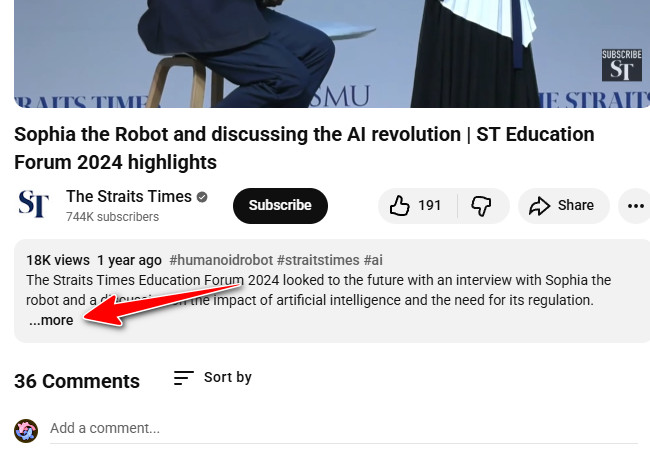
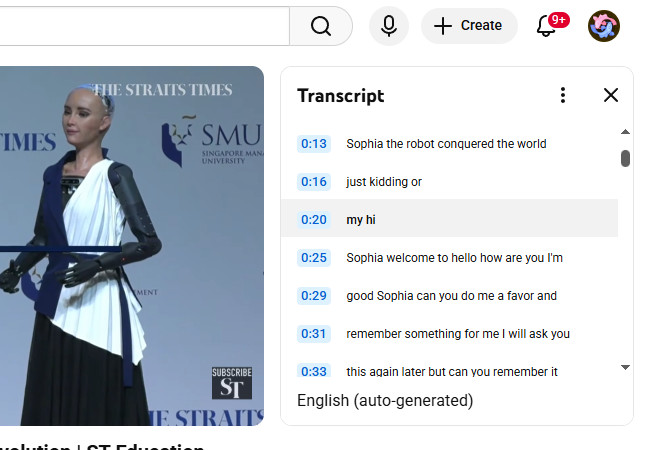
- Then, click “Show transcript”, and the transcript will appear on the video’s right side.
Method 2: Get Text from YouTube Video Using an AI-Powered Tool
Another method you can use to get text from a YouTube video is by using an AI-powered YouTube video transcript generator tool like RecCloud! This web-based tool is powered by an AI trained on thousands of long videos to deliver over 98% accuracy. It doesn’t just transcribe YouTube videos; it perfectly understands them and captures every word, whether the video is a lecture or one with fast-paced dialogue. Unlike the first method, this one can get text from any YouTube video, even if it does not contain subtitles or captions, or if the creator has not enabled them. Additionally, it supports over 100 languages and allows you to translate the generated text while preserving the original message. Aside from that, it also allows you to edit the text.
Here’s How You Will Use It:
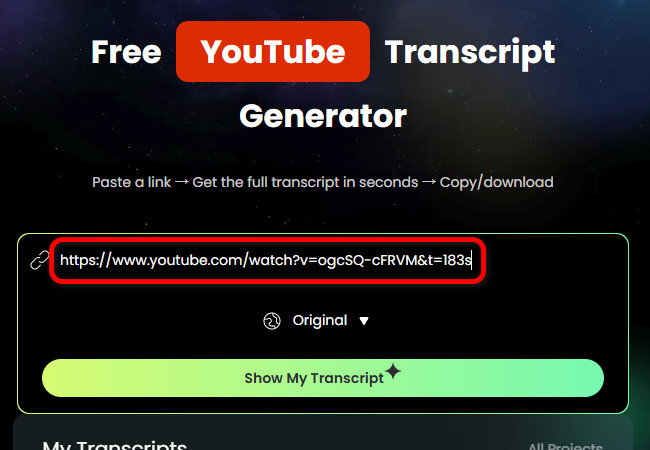
- Copy the link of the YouTube video you want to get text from. Then, visit RecCloud’s Free YouTube Transcript Generator website and paste the copied link into the link input field.
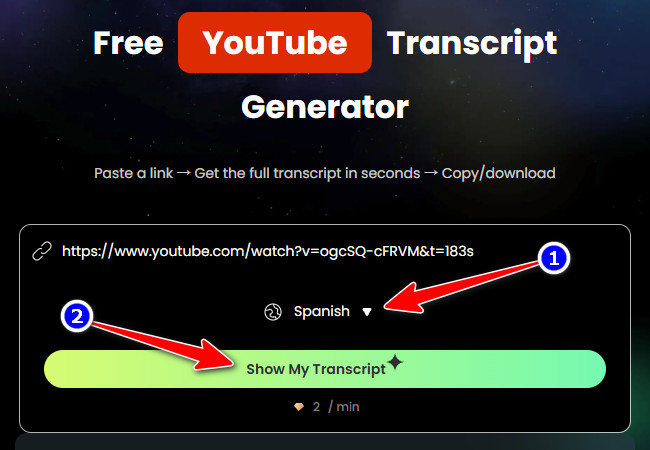
- Next, click the “Language” dropdown menu, choose your preferred language for translation (you can also choose not to translate the text by selecting “Original”), and click “Show My Transcript” to start getting the text from the YouTube video.
- Once the tool finishes getting the text, click the “Export” button in the lower-right corner, select “Subtitles only”, and click the “Subtitles (SRT)” button to export the text from the YT video. This completes the process of extracting text from YouTube videos using this tool

Method 3: Download Text from YouTube Video through Browser Extension
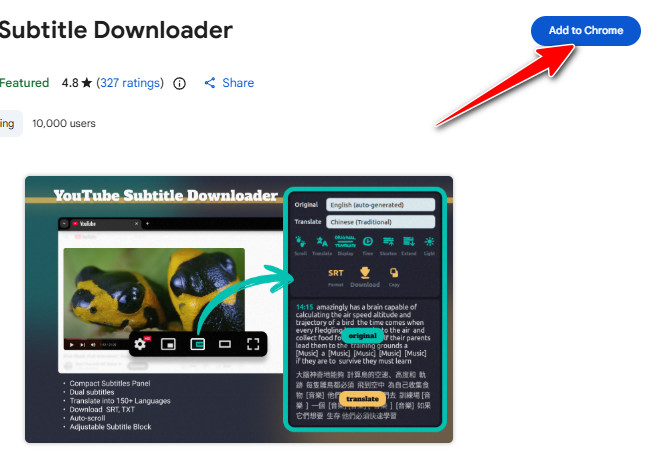
Aside from web-based AI-powered tools, there are also browser extension tools you can use to get text from YouTube video content, and one of the best options is YouTube Subtitle Downloader. This is a simple Chrome extension that lets you quickly get the text from any YT video with captions. With it, you can easily download a video’s subtitles or transcript in formats like TXT, SRT, or VTT, which makes it a perfect tool for studying, quoting, or repurposing content. However, it only works for videos with existing captions.
Here’s How You Will Use It:
- Go to the Chrome Web Store in your browser, search for the YouTube Subtitle Downloader extension, and click the “Add to Chrome” button. After that, click the “Add extension” button to download and install it.
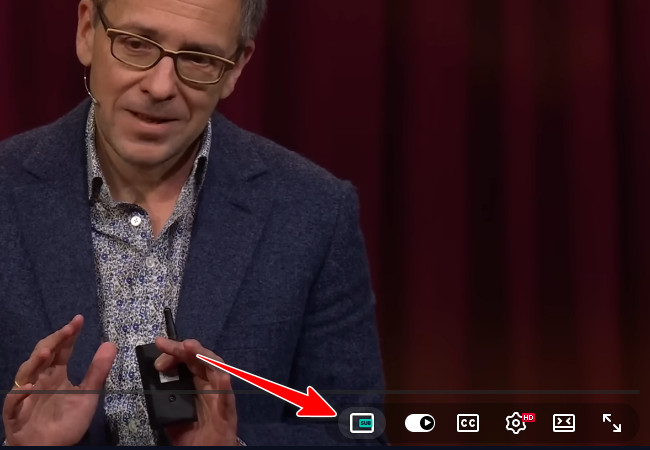
- Once installed, go to the YouTube video you want to get the text from. Then, click the “box icon with SUB text inside”.
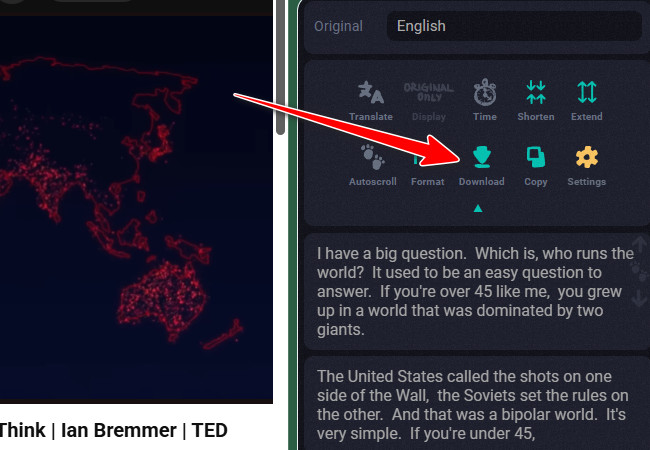
- Then, the YouTube Subtitle Downloader interface will appear on the right-hand side of the video, along with the video’s text. To save it, click the “Download” button to download the text to your device.
Method 4: Hire Professional Assistance for Accuracy
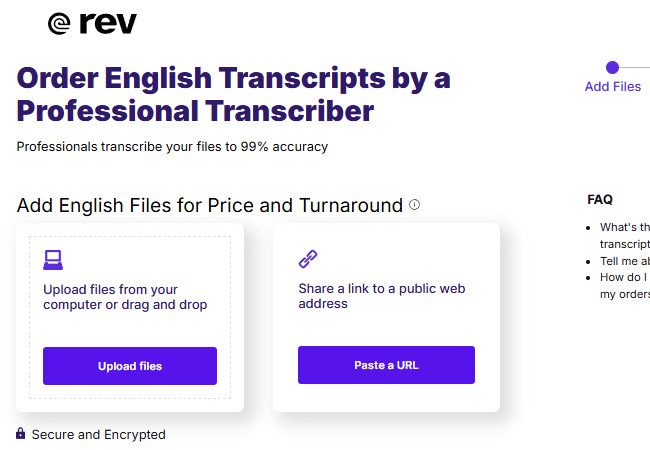
The last method you can use to get text from a YouTube video is through human-based transcription. This is a great option if you are looking for an output with no errors. One of the best platforms that offers human transcription is Rev. This platform is a professional service that converts YouTube videos or other audio content into written text using real human transcribers instead of AI. It is ideal when accuracy matters, such as for interviews, research, legal content, or educational materials, since each transcript is carefully reviewed for clarity and correctness. You simply upload a video or paste a link to receive a clean, easy-to-read transcript with optional timestamps and formatting. The main drawbacks are the cost and potentially high expense for longer videos for longer videos compared to automated tools.
FAQs about Getting Text from a YouTube Video
1. What is the best way to get text from a YouTube video without subtitles?
If a YouTube video does not have captions enabled, AI-powered or human transcription tools are the best options. They generate text directly from the audio, even without subtitles, making them more flexible than YouTube’s built-in transcript or browser extensions.
2. How accurate are AI tools when you get text from a YouTube video?
Modern AI transcription tools are highly accurate for clear audio and standard speech, but accuracy can drop with background noise, strong accents, multiple speakers, or technical terms. In such cases, light editing or human transcription may be needed.
3. Can I get text from a YT video on my phone?
Yes, you can get text from a YT video on mobile by using web-based AI transcription tools through your browser. Some platforms are mobile-friendly and work on both Android and iOS, though most browser extensions are desktop-only.
Conclusion
There you have it! Those are the 4 best methods you can use to get text from YouTube video. You can use the built-in transcript, an AI-powered tool, a browser extension, or professional human transcription to quickly turn video content into readable text. Picking the right method helps you save time, study more effectively, and repurpose videos for notes, research, or translations. Start using these methods today to get text from YT videos and make the most of every video you watch.


Leave a Comment