Convert MP4 to MP3 in 4 Free and Easy Ways [Desktop/Browser]
- How to Convert MP4 to MP3 with VLC Media Player on Windows
- How to turn MP4 Video into MP3 Using iMovie on Mac
- How to Convert MP4 to MP3 through CloudConvert [Online]
- Bonus Tip: Convert and Translate Any MP4 Videos to MP3 [Highly Accurate]
- FAQs About MP4 to MP3
How to Convert MP4 to MP3 with VLC Media Player on Windows
If you want to convert MP4 to MP3 without incurring any costs, then use the VLC Media Player. This Windows- and Mac-compatible tool is a free media player that supports popular video and audio formats like MP4, MP3, WebM, and OGG. While it is known for its powerful ability to play videos in different formats, it also supports extra features that enable you to tweak media files, including converting them. However, there are a few things you should note:
- VLC is not a dedicated tool to convert MP4 to MP3. In that case, it is not a recommended tool to get an output with the best audio quality.
- If the converted file does not show up as an MP3 and still opens as a video, manually add .mp3 to the file name in the destination folder to ensure it is recognized as an audio file.
Here’s how you can use it:
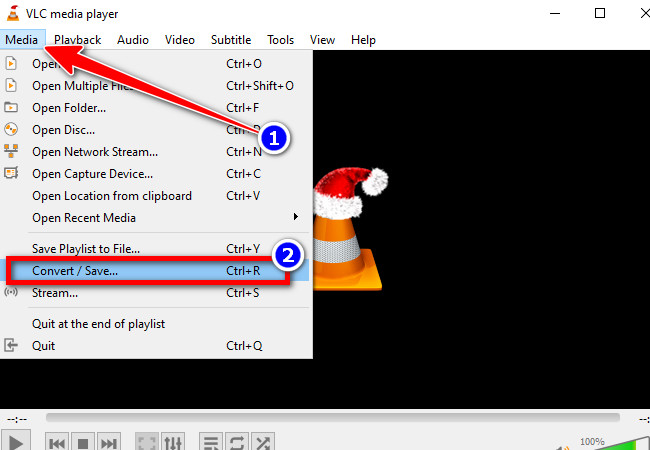
- Install the VLC Media Player on your Windows or Mac computer. After that, run it, click “Media”, and select “Convert / Save”.
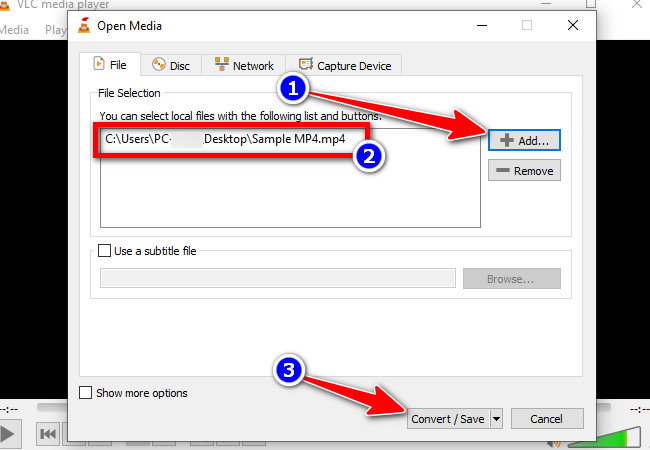
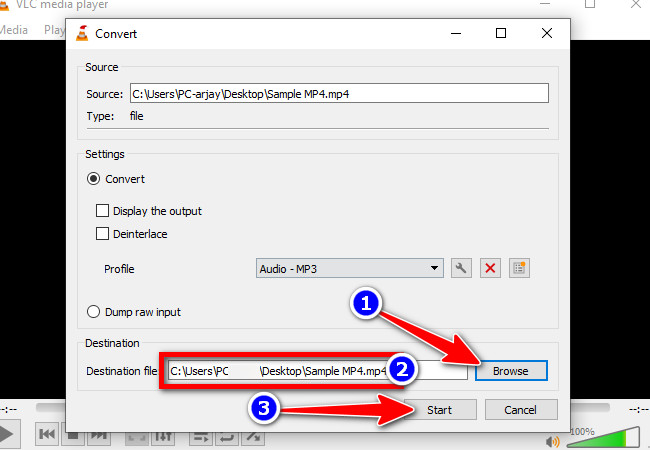
- Next, click the “Add” button to browse for and load the MP4 video from your computer that you wish to convert. Then, click the “Convert/Save” button.
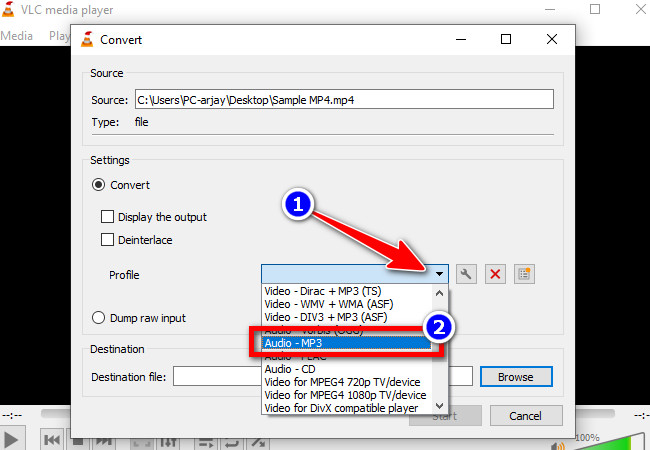
- After that, head to the “Settings” section, click the “Profile” dropdown button, scroll down through the options, and select “Audio – MP3”.
- Then, click the “Browse” button and select your output file destination. After that, click the “Start” button to begin converting your MP4 file to MP3.
How to turn MP4 Video into MP3 Using iMovie on Mac
Apart from VLC, you can also use iMovie on your Mac to convert MP4 to MP3. The same goes for VLC; it is also not a dedicated converter tool since it is a video editing software. Despite that, it is still a handy option, as it lets you export an MP4 file as an MP3. Additionally, it is a great option if you wish to edit the MP4 file’s audio before exporting it as an audio file.
Here’s how you can use it:
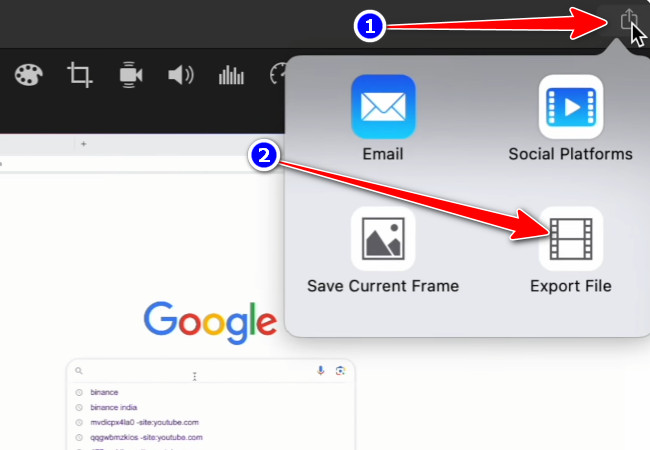
- Run iMovie on your Mac and import the MP4 file into it. Optionally, you can edit the “MP4” if needed. Next, click the “Export” icon at the upper right corner, and select the “Export File” option.
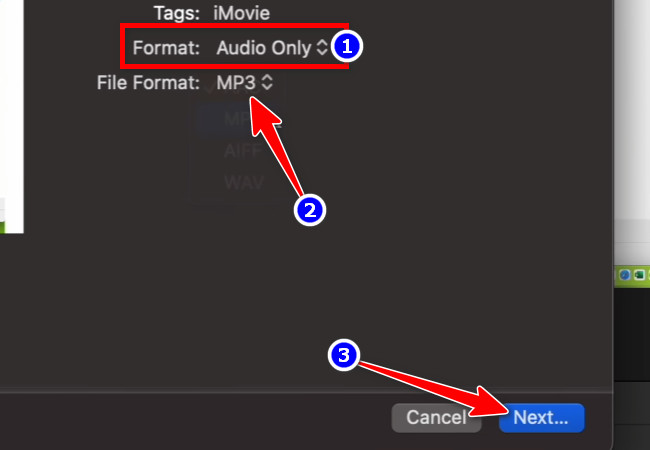
- After that, in the File dialog box, change the “Format” to “Audio Only”. Then, select the “MP3” format from the “File Format” menu. Next, click “Next…” and choose your preferred file destination for the output.
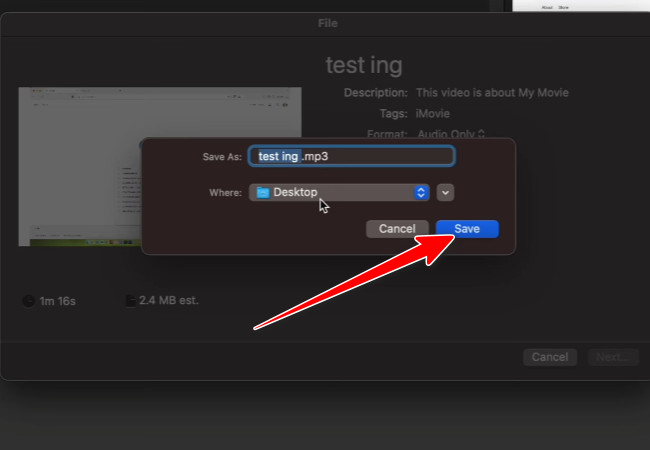
- Then, click “Save” to begin the file conversion operation.
How to Convert MP4 to MP3 through CloudConvert [Online]
If you no longer want to install a third-party tool just to convert your MP4 file to MP3, you can use CloudConvert as an alternative. This web-based, free online converter allows you to transform MP4 videos into MP3 files. Compared to VLC and iMovie, it offers a much more straightforward conversion process, as it is a dedicated file converter. What makes this even more impressive is that it supports an option to tweak the output MP3 audio to enhance its quality. The only thing that could possibly disrupt your conversion process with this tool is the stability of your internet connection, as it is an online, web-based tool.
Here’s how you can use it:
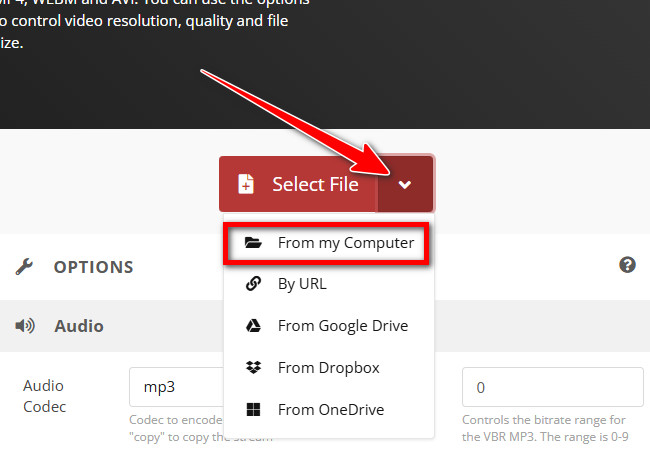
- Visit CloudConvert‘s MP4 to MP3 converter website and drag and drop the MP4 file you wish to convert directly onto the tool’s interface. Alternatively, you can also click “Select File”, choose “From my Computer”, and select the MP4 file.
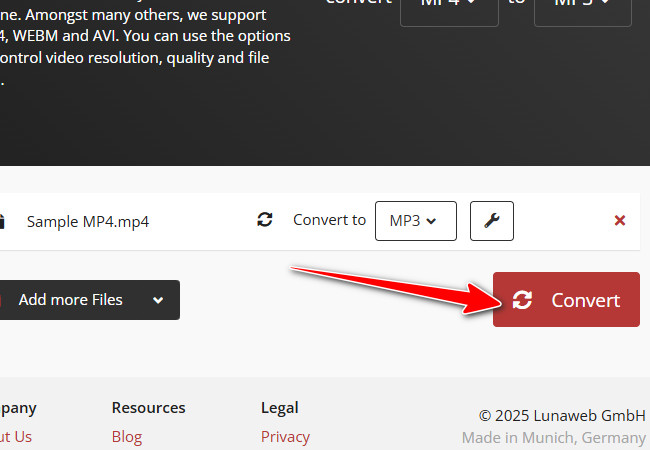
- Next, immediately click the “Convert” button since “MP3” is already selected as the output format. Then, wait for the tool to finish the uploading and conversion process.
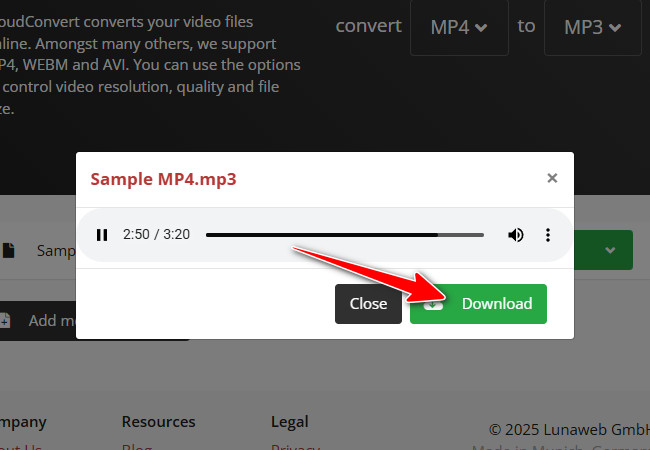
- Once done, the converted version will automatically play for preview. If you are satisfied with it, click the “Download” button to save the converted MP4.
Bonus Tip: Convert and Translate Any MP4 Videos to MP3 [Highly Accurate]
Another solution you can use to convert MP4 to MP3 is RecCloud’s Free Online AI Video Translator. Like VLC and iMovie, this tool is not a dedicated converter solution, it allows you to transform MP4 videos into audio files through export. Meaning, you can use this tool to export MP4 videos as an audio file, and the conversion will take place. What makes it different from the rest is that it lets you translate videos into over 70 major languages, including English, Chinese, Spanish, French, and more. Through its advanced AI algorithms, this tool can deliver precise translations that ensure the original message is conveyed accurately across languages.
Key Features:
- Lets you convert MP4 files to an audio file through export while keeping the original audio quality.
- It can translate voiceovers and subtitles while providing voice tones to choose from.
- Allows you to manually edit and proofread both original and translated texts.
Here’s how you can use it:
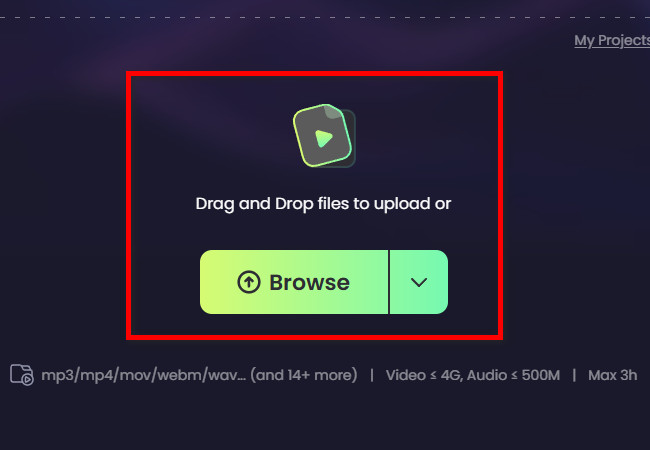
- Visit RecCloud’s Free Online AI Video Translator website on your browser and import the MP4 video you wish to convert by dragging and dropping it into the tool’s interface.
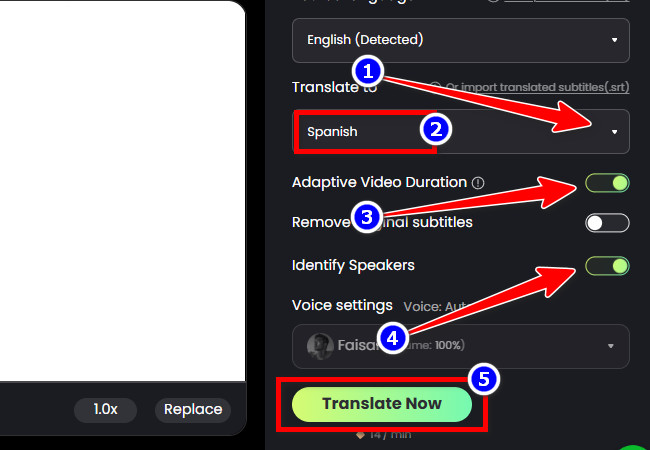
- Once the file is imported, click the “Translate to” dropdown menu and select your preferred language. Then, toggle on “Adaptive Video Duration” to smooth out the speech rate, as well as “Identify Speakers”. After that, click “Translate Now”.
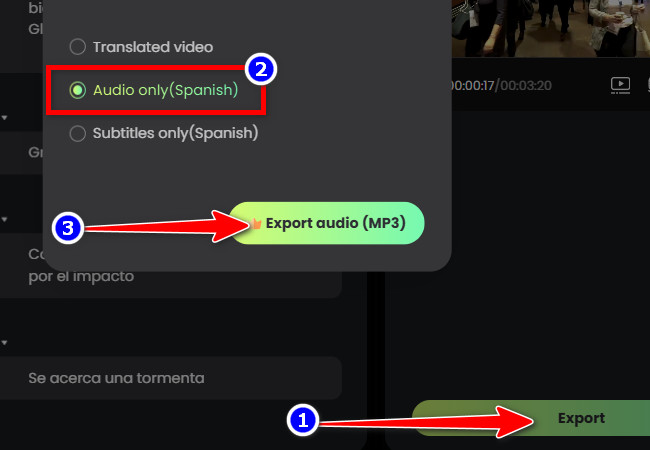
- Once the translation is finished, click the “Export” button, select “Audio only (with the language you chose for the translation)”, and click “Export audio (MP3)”. And that’s it!
FAQs About MP4 to MP3
1. Will converting MP4 to MP3 affect audio quality?
Yes, it can. MP3 compresses audio, so some quality may be lost. Using a higher bitrate helps keep the sound clearer.
2. Is it okay to convert MP4 files to MP3?
It is legal if you own the video or have proper authorization to use it. Converting copyrighted content without approval may not be allowed.
3. Can I convert multiple MP4 files at the same time?
Some online converters let you convert multiple files at once, but free versions often have limits. CloudConvert can handle batch conversion with an account or paid plan, while the free version may restrict the number of files.
Conclusion
Converting MP4 to MP3 is simple with the right tools. VLC Media Player and iMovie let you get audio from videos on Windows and Mac, while CloudConvert works online and can handle multiple Choose the tool that best suits your needs to quickly convert lectures, podcasts, or music videos into portable audio files.



Leave a Comment