
3 Best MP4 to SRT Tools for Fast and Accurate Subtitles
- Tips for Choosing the Best MP4 to SRT Converter Tool
- Quick Comparison Table for Top 3 MP4 to SRT Tools
- 3 Best MP4 to SRT Tools: Detailed Review
- FAQs About MP4 to SRT
Tips for Choosing the Best MP4 to SRT Converter Tool
The market offers many tools that can automatically generate subtitles or convert MP4 to SRT, but the challenge lies in identifying which ones offer the best features and services. To help with that, here are some tips to keep in mind when choosing the best tool for your needs and preferences.
1. Accuracy and Language Support – Pick a tool that creates accurate subtitles and can handle different accents, background noise, and technical words. If your audience speaks multiple languages, make sure the tool supports them. Good accuracy saves time and ensures your message is clear.
2. Speed and Processing – Online tools process videos in the cloud, which is easy and does not use your computer’s power a
3. Easy to Use – Look for a tool with a simple editor so you can fix mistakes and adjust timing easily. Complicated tools slow you down, while a clear interface makes editing fast and simple.
4. Output Options – Even if you only need an SRT file, it helps if the tool can also export in formats like VTT or TXT. Some tools let you adjust font, color, or position for burned-in subtitles. This makes your subtitles ready for different platforms.
Quick Comparison Table for Top 3 MP4 to SRT Tools
There you have it! Those are some tips to keep in mind when choosing the best MP4 to SRT converter tools. Now, to give you a quick look at this post’s top 3 picks, here’s a simple comparison table based on the tips mentioned earlier. Feel free to explore it.
| Best MP4 to SRT Tools | Accuracy | Language Support | Processing Speed | Ease of Use |
| RecCloud | Very High (studio-quality SRT file) | 100+ languages | Very fast | Very easy |
| Zamzar | Low-Moderate | Limited | Fast | Very easy |
| NoteGPT | High | Many languages (not specified) | Fast | Easy |
RecCloud – for creators who need clean, studio-quality SRT files.
Zamzar – for users who just want a quick and simple MP4 to SRT conversion.
NoteGPT – for students, note-takers, or creators who need fast transcripts.
3 Best MP4 to SRT Tools: Detailed Review
If the table above isn’t enough to help you decide which MP4 to SRT converter tool to use, keep reading. In this section, you’ll get a detailed look at each of this post’s top 3 tools. So, without further ado, dive in and find the one that best suits your needs.
1. RecCloud – Best for Accurate SRT Generation
If you are looking for a tool that checks all the boxes of being the best MP4 to SRT tool, then you need to use RecCloud’s Free AI Subtitle Generator Online. This professional tool lets you create studio-quality subtitles with perfect audio sync and timestamps, thanks to its AI, which is trained to catch every word, even in challenging audio. What makes this tool even more amazing is that, besides its intuitive interface and easy-to-use features, its SRT generation speed is outstanding! Moreover, this tool allows you to translate SRT files into over 100 languages and customize their appearance by changing fonts, colors, styles, and more.
Here’s how you can use it:
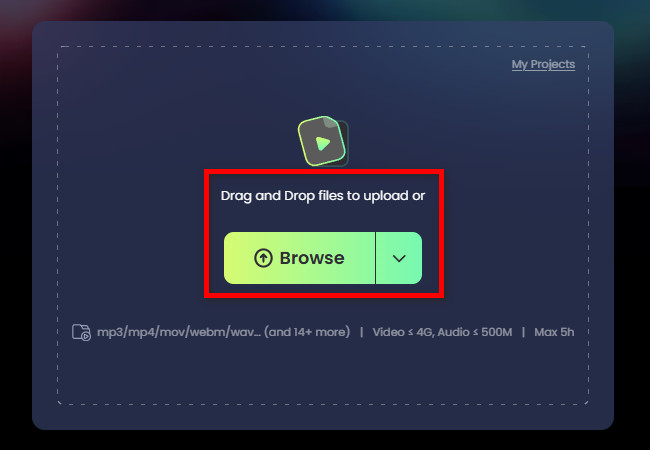
Step 1. Head to RecCloud’s Free AI Subtitle Generator Online, click the “Browse” button to import the MP4 video you wish to turn into an SRT. Alternatively, you can also drag it directly to the tool’s interface.
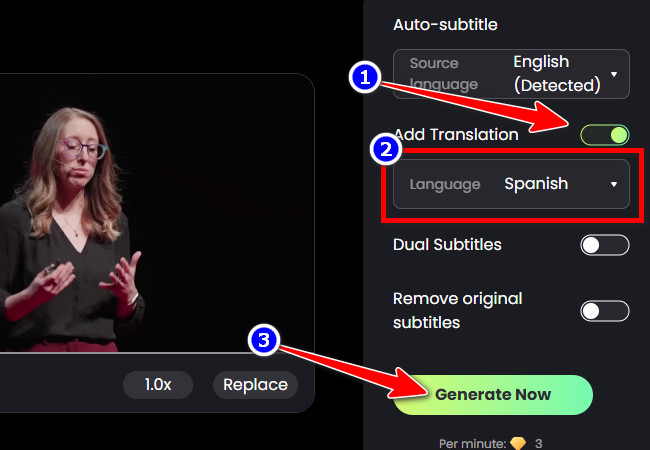
Step 2. Next, if you don’t want your SRT file translated and there are no existing subtitles in the MP4 video, leave the parameters as they are. Otherwise, if you want to translate the SRT, turn on “Add Translation”, select your preferred language, and click “Generate Now”.
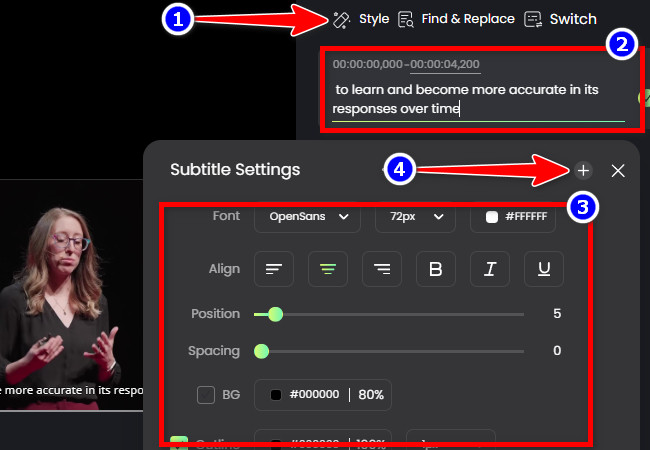
Step 3. After generation, the tool previews the subtitles with timestamps, letting you edit them for accuracy. To adjust their appearance, click “Style” and use the options, and you can save your custom style by clicking the “Plus” icon.
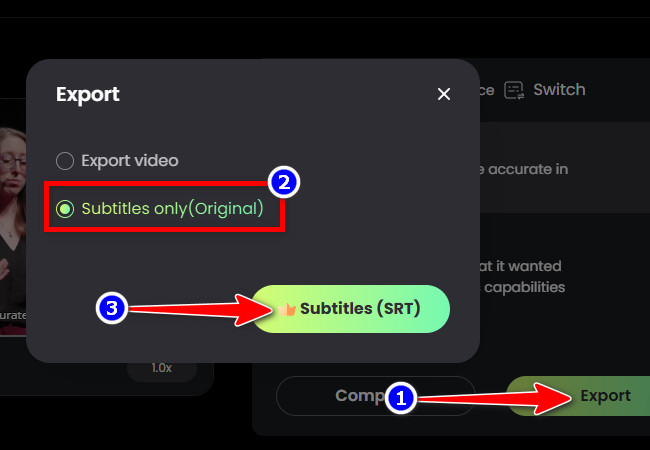
Step 4. Once you are satisfied with the generated SRT for your MP4 video, click the “Export” button, choose “Subtitles only”, and click “Subtitles (SRT)”.
Pros
- Easy to use with highly accurate output.
- Offers fast SRT generation operation.
- Allows you to edit the subtitles and their timestamps.
- Enables you to export an SRT file for your MP4 with two different languages.
Cons
- Requires payment for the full experience.
2. Zamzar – Best for Simple Online File Converter
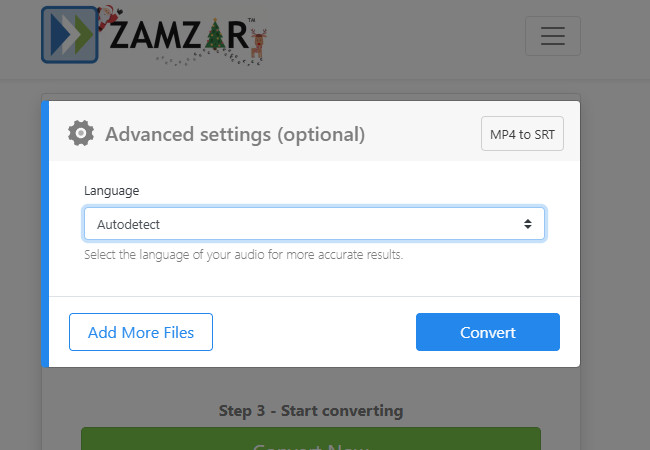
Another tool you can use to convert MP4 to SRT is Zamzar. Like the first featured web-based tool, this one also offers a simple and fast SRT generation process. It has an intuitive interface and easy-to-start conversion. Just import the MP4 file you want to extract an SRT from, and the tool will handle the rest automatically. If you’re looking for a straightforward tool with no extra options or steps, this one is a great choice.
Pros
- Intuitive interface and easy-to-use.
- Free to use and requires no account registration.
- Straightforward SRT generation operation.
- Generated subtitles are pretty accurate and come with timestamps.
Cons
- This tool’s free version has a 50MB file size limit.
- It doesn’t let you preview the generated SRT.
- Doesn’t come with options to edit the subtitles.
- Not a sophisticated tool for MP4 to SRT conversion.
3. NoteGPT – Best for Long Lectures and Batch Processing
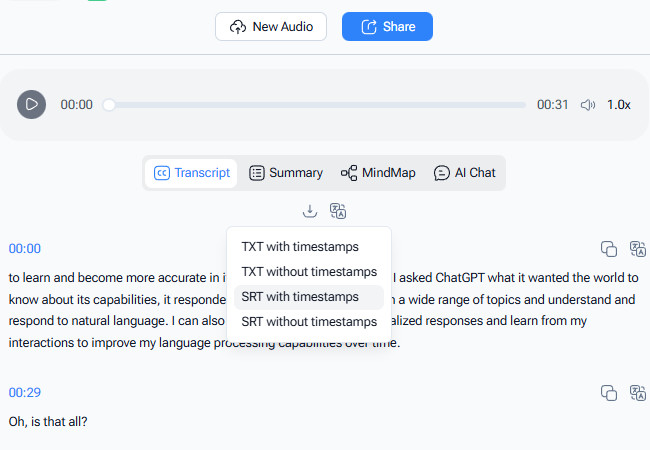
The last MP4 to SRT converter tool that this post would like to recommend is NoteGPT. Like the tools above, this one is also capable of converting any MP4 video into an SRT file. It also offers a pretty fast conversion operation with accurate output. What sets this tool apart is its ability to convert multiple MP4 videos to SRT files simultaneously. If you need to convert several MP4 files, this tool lets you do it all at once, saving you time.
Pros
- Simple and easy-to-use tool.
- Free to use, no account registration required.
- Quick MP4 to SRT conversion.
- Supports importing MP4 videos larger than 50MB.
- Can process up to 20 MP4 videos simultaneously.
- Allows translation of generated SRT files into multiple languages.
Cons
- Requires account registration to access full features.
- Generated SRT timestamps may be incomplete.
- Does not allow editing of the generated subtitles.
FAQs About MP4 to SRT
1. Can I convert very long MP4 videos into subtitles without errors?
Yes. Most tools can handle long videos, but processing time increases and accuracy may drop for very lengthy files or poor-quality audio. Splitting the video into shorter segments can help maintain accuracy.
2. Do these tools automatically sync subtitles with the video timing?
Yes. Time-coded subtitles are usually generated automatically. However, simpler tools like Zamzar and NoteGPT may produce less precise timing, so minor adjustments might be needed manually.
3. Can I edit the subtitles after the SRT file is generated?
Yes. SRT files are plain text and editable in any text editor or subtitle software. Some tools, like RecCloud, also provide built-in editors to adjust text, timing, or translations easily.
Conclusion
Converting MP4 to SRT is easy with tools like RecCloud, Zamzar, and NoteGPT. Whether you need accurate, studio-quality subtitles, quick conversions, or fast transcripts, these tools can save time and improve accessibility. RecCloud excels in speed and language support, Zamzar is ideal for simple conversions, and NoteGPT works well for notes or study purposes. Choose the right tool to make your videos more accessible and shareable today.




Leave a Comment