
Capture MP3 from YouTube in 4 Workable Methods [with Steps]
- How to Record Audio from YouTube for Free Online
- How to Record Audio from YouTube with Audacity
- How to Record Audio from YouTube on iPhone and Android
- Recording YouTube Audio: Legal & Safe Practices
- FAQs about Recording Audio from YouTube
How to Record Audio from YouTube for Free Online
The first way you can record audio from YouTube is to use RecCloud’s Free AI Speech to Text Online. This web-based tool supports the ability to record system audio, which makes it possible to record any YouTube content, like music videos. You can capture YouTube content by simply enabling the system audio, hitting the record button, and saving it, and that’s it! You can immediately get a recorded audio version of the YouTube content and use it based on your purpose. What makes this worth trying is that you can automatically convert the recorded audio into text as a transcript and a summarized version with key points for free, which is great if your purpose for recording audio from YouTube is to study it or transcribe it.
Key Features:
- Lets you record audio from YouTube with high quality up to 300 minutes in duration.
- Capable of recording audio from YouTube through a microphone, system audio, or both.
- Automatically generates a transcript and a summarized version of the recorded audio.
- Allows you to translate the generated transcript and summary and export them as a DOCX file.
Here’s how to use it:
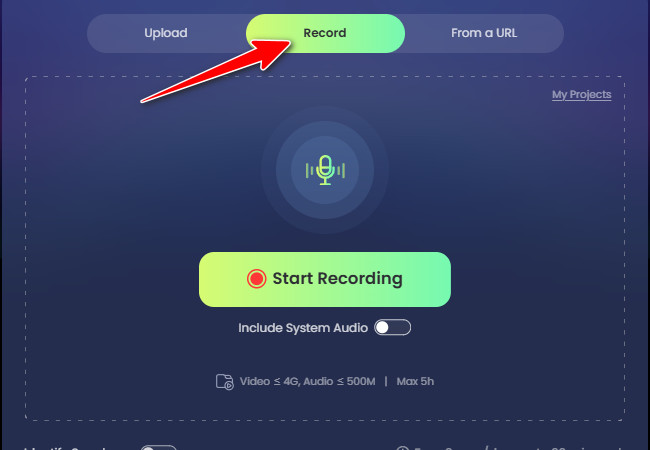
- First, access the YouTube content that you wish to record the audio of on your browser. Then, visit RecCloud’s Free AI Speech to Text Online on a new tab. Next, click the “Record” tab.
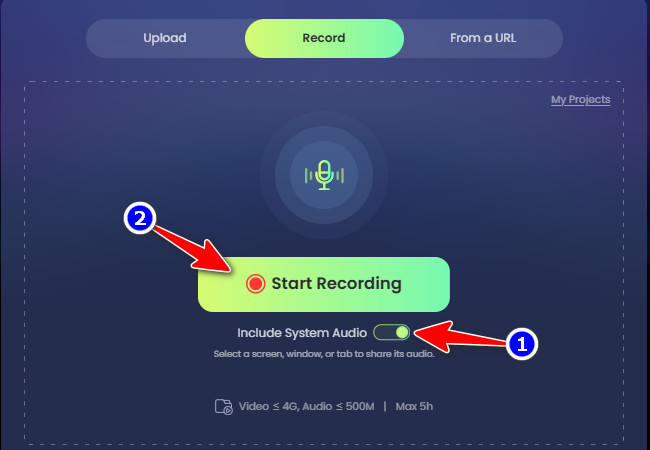
- Then, toggle on the “Include System Audio” below the recording button and click the “Start Recording” button to proceed to the next step.
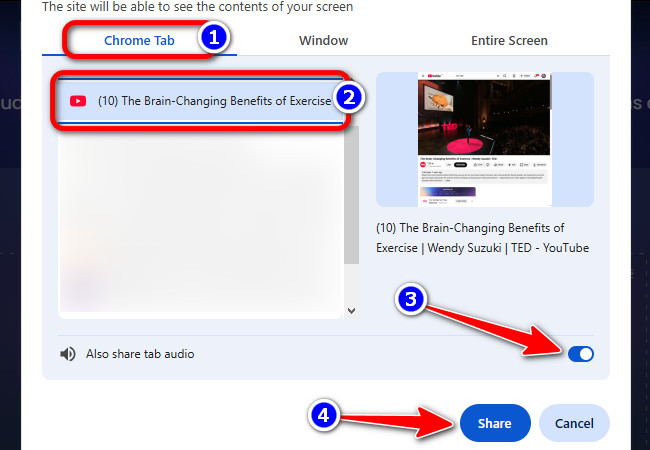
- After that, click the “Browser” tab you are currently using (e.g., Chrome Tab), select the YouTube tab with the content you wish to record, toggle on “Also share tab audio” below, and click “Share” to start recording.
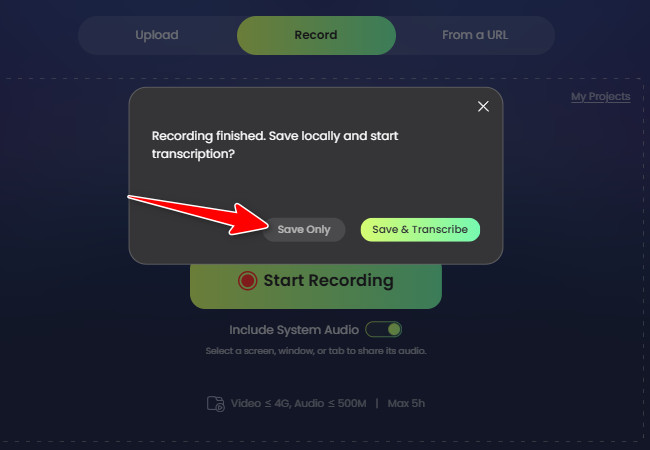
- Once you are done recording, click the “Check” icon and then the “Save Only” button. If you wish to transcribe the recorded YouTube audio, click the “Save & Transcribe” button, and the transcription process will start automatically.
How to Record Audio from YouTube with Audacity
If you are using Windows or Mac, one of the best tools you can use to record audio from YouTube for free is Audacity. This free, open-source, cross-platform digital audio workstation records and edits sound on Windows and Mac. It can capture live audio from microphones or mixers and digitize recordings from other sources. Although this tool delivers professional-quality audio, it can be overwhelming for beginners due to its many features, and setting up inputs and recording preferences takes time.
Here’s how to use it:
- Visit Audacity‘s official website, download and install it on your Windows or Mac computer, and then launch it.
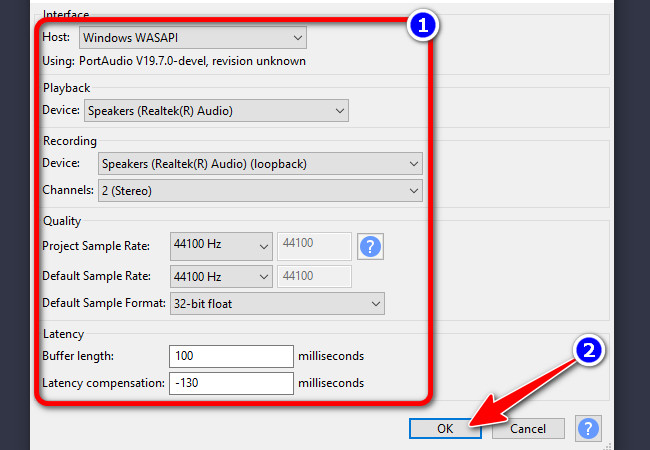
- Next, if you are using Windows, click the “Audio Setup” dropdown button and select the “Audio Settings…” option. Then make sure the settings match the setup shown in the image. This will make Audacity record audio from your computer. Once done, click “OK”.
- Otherwise, if you’re on a Mac, use a virtual audio tool like BlackHole to send system audio into Audacity.
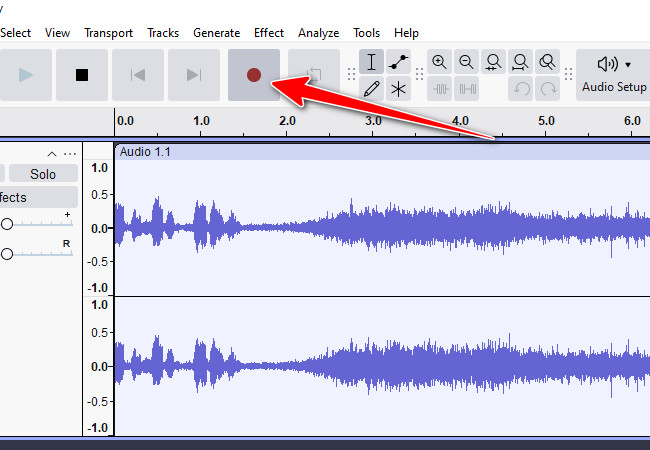
- After that, go to the YouTube content you wish to record and play it. Then return to Audacity and click “Record”.
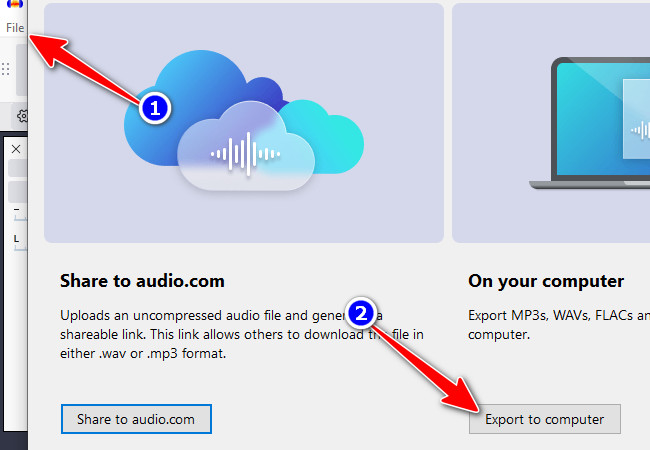
- Once done recording, click the “Stop” button with the “small box” icon. Then, click the “File” tab, select “Export Audio”, and choose “Export to computer”.
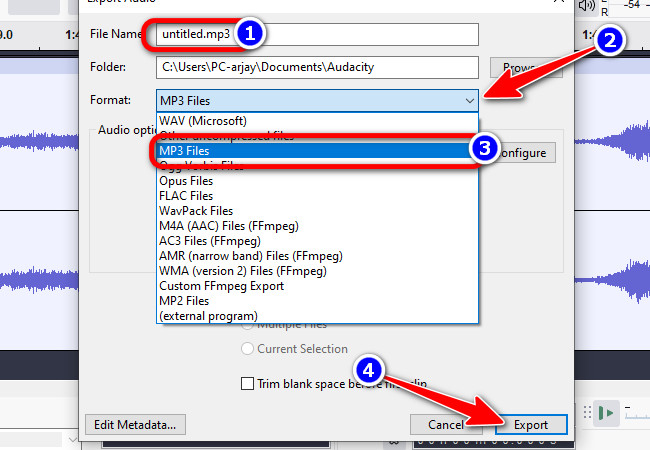
- Lastly, rename the recorded audio from YouTube, click the “Format” dropdown button, and choose “MP3 Files”. After that, click “Export”. And that’s it! That’s how you use Audacity to record audio from YouTube.
How to Record Audio from YouTube on iPhone and Android
If you prefer to use your Android or iPhone to capture MP3 from YouTube, doing it is somewhat different from the first two featured solutions. Why? Most Android and iPhone devices, while supporting a default audio recorder, are usually designed to capture sound only from a microphone. In this case, you can use a workaround to record YouTube audio by combining a screen recorder with an MP3 converter tool.
Here’s how to use it:
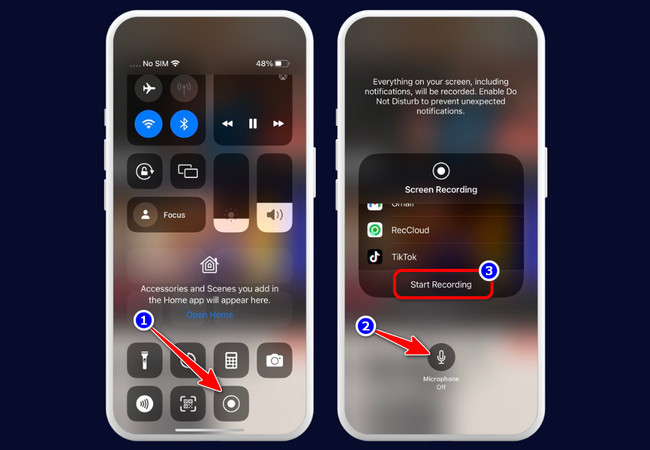
- If you are using an iPhone, access the Control Center and tap “Screen Recording”. Make sure to turn the microphone off. Then open the “YouTube” app and play the video you wish to record. Once done, tap the “red status bar” at the top to stop the recording.
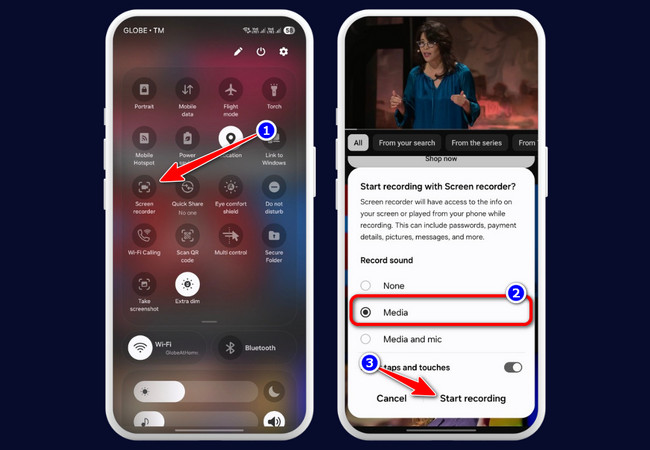
- For Android users, open the Quick Settings panel and tap “Screen recorder”. Next, choose to record only the system audio, then tap “Start recording”. After that, open “YouTube” and play the video. Once done, tap “Stop” to end the recording.
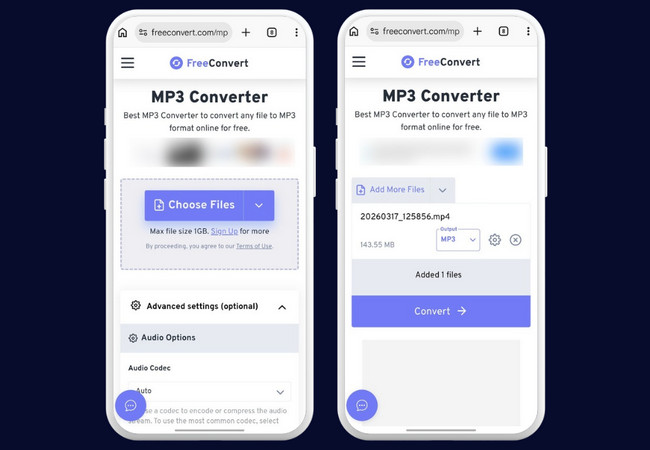
- Next, visit the FreeConvert MP3 Converter website on your phone’s browser, import the recorded YouTube video, and tap the “Convert” button to start converting the video to MP3.
Recording YouTube Audio: Legal & Safe Practices
There you have it! Those are the four efficient ways to record audio from YouTube. Now, please be aware of copyright considerations first. Having these considerations in mind will help you stay on the right side of the law and avoid potential issues.
1. Fair Use – Only record audio for personal use, study, commentary, or short excerpts. Keep recordings brief or modify them enough so they fall under fair use.
2. Avoid Infringement – Do not use recorded content for sharing, selling, or commercial purposes. Always pick safe, reliable tools to protect both your content and your device.
FAQs about Recording Audio from YouTube
1. Can I record only part of a YouTube video instead of the whole thing?
Yes. You can start recording at the exact part you need and stop when that section is finished. This is useful if you only want a quote, song clip, lecture point, or short audio sample.
2. Why is there no sound in my YouTube recording?
This usually happens when system audio is not enabled before recording. On mobile, it can also happen if the screen recorder is set to microphone only instead of internal or media audio.
3. Is it better to record YouTube audio as MP3 or WAV?
MP3 is better for saving space and everyday listening, while WAV is better if you want higher quality for editing. The right format depends on whether you want convenience or better audio detail.
4. Does recording audio from YouTube reduce sound quality?
It can, depending on the tool and settings you use. If you record with low-quality settings or convert the file too many times, the audio may sound less clear than the original.
5. Is it legal to record a music video from YouTube?
In most cases, no. Recording a music video from YouTube without permission may violate copyright rules and YouTube’s terms, especially if you plan to share, upload, or reuse it beyond personal viewing.
Conclusion
If you want to record audio from YouTube, the best method depends on the device you are using and what you plan to do with the audio afterward. RecCloud is a practical choice if you want to record and transcribe YouTube audio in one place. Audacity is a strong option for desktop users who want more control, and screen recording works well on Android and iPhone for simple mobile capture. No matter which method you choose, make sure to use it responsibly, keep copyright rules in mind, and save the audio in a format that fits your needs.


Leave a Comment