
[Solved!] 2026’s Easiest Way to Remove Burned-in Subtitles
- Understanding Burned-in Subtitles: Why They’re So Problematic
- Traditional Methods (and Their Limitations)
- The Modern AI Solution: How It Actually Works
- Step-by-Step Guide to AI Subtitle Removal
- Alternative Options to Consider
- Tips for Best Results
- FAQ: Common Questions About Removing Hardcoded Subtitles
Understanding Burned-in Subtitles: Why They’re So Problematic
Hardcoded subtitles differ fundamentally from soft subtitles. Soft subtitles exist as separate text files (like SRT or VTT) that your video player layers over the video. Burned-in subtitles, however, are rendered directly into each video frame during encoding.
This integration makes them incredibly difficult to remove. The text pixels blend with the background, especially with compression artifacts. Traditional video editing software sees them as part of the image, not as removable elements.
Common scenarios where you might need to remove hardcoded subtitles include:
- Repurposing downloaded educational content
- Removing language-specific subtitles for international audiences
- Cleaning up screen recordings with UI text
- Preparing videos for different distribution platforms
Traditional Methods (and Their Limitations)
Before AI tools emerged, video editors used several workarounds. Each has significant drawbacks that make them less than ideal.
Method 1: Cropping or Covering
Cropping removes the entire area containing subtitles. While simple, you lose valuable screen real estate and may crop important visual content. Covering with graphics or blurring looks amateurish and draws attention to the edited area.
Method 2: Clone Stamp and Content-Aware Fill
Tools like Adobe Photoshop‘s content-aware fill or video editors’ clone stamp attempt to reconstruct the background. These require frame-by-frame work for moving videos and rarely produce seamless results across different scenes.
Method 3: Re-encoding with Masking
Some editors allow you to mask the subtitle area and attempt to regenerate the background. This works best for static backgrounds but fails dramatically with moving scenes or complex textures.
The common limitation? These methods are time-intensive, require advanced skills, and often produce visible artifacts. For content creators needing efficient workflows, they’re rarely practical solutions.
The Modern AI Solution: How It Actually Works
AI-powered subtitle removal represents a breakthrough in video processing technology. Instead of manually editing each frame, these tools use machine learning algorithms to understand what’s behind the text.
The process involves three key stages:
1. Text Detection: The AI identifies subtitle regions across all video frames
2. Background Analysis: Algorithms analyze surrounding pixels to predict what should be behind the text
3. Reconstruction: Based on learned patterns, the system generates replacement pixels that blend naturally
Quality varies based on the complexity of your video. Simple backgrounds with consistent colors yield near-perfect results. Complex, moving backgrounds may show slight imperfections, but still outperform manual methods significantly.
Step-by-Step Guide to AI Subtitle Removal
The easiest approach uses specialized AI tools designed specifically for this task. Here’s a straightforward three-step process:
Step 1: Upload Your Video
Most modern tools accept common formats like MP4, MOV, and AVI. Upload limits typically range from 500MB to 4GB, with processing times proportional to video length.
Step 2: Select Subtitle Regions
Some tools auto-detect subtitle areas, while others let you manually select regions. For tools like RecCloud’s Remove Subtitles from Video, you can adjust the selection box to precisely target the text you want removed. It allows users to select subtitle regions and process videos automatically using AI reconstruction, helping restore clean visuals with minimal manual editing.

Step 3: Process and Download
Choose your processing mode—Fast mode for simple backgrounds or Best Quality for complex scenes. The AI processes your video frame by frame, then provides a downloadable version without the hardcoded subtitles.
The entire process typically takes minutes rather than the hours required for manual editing. You get professional-looking results without needing video editing expertise.
Alternative Options to Consider
While AI tools offer the easiest solution for most users, some scenarios might call for different approaches:
1. Professional Editing Software: Adobe After Effects or CapCut offer advanced tracking and content-aware tools. These require significant skill and time investment but provide maximum control for complex projects.
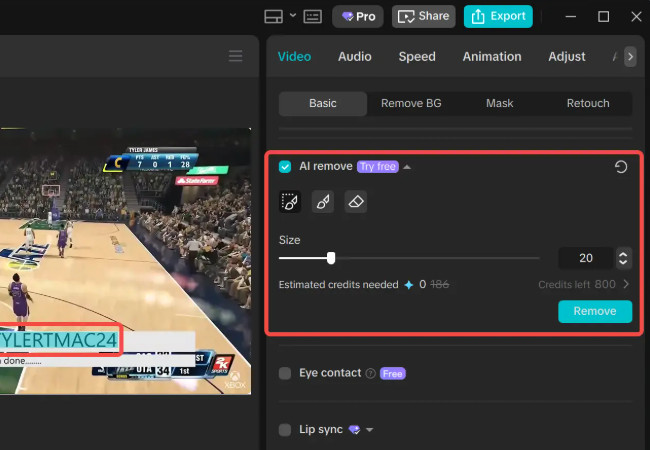
2. Free Browser Tools: Several free online tools offer basic subtitle removal. Quality varies widely, and many have file size limitations or watermarks on the output.
3. Desktop Applications: Some standalone applications provide offline processing. These avoid upload concerns but require software installation and may have higher system requirements.
For most content creators, the balance of convenience, quality, and cost favors specialized online AI tools. They eliminate the learning curve while delivering professional-grade results.
Tips for Best Results
Follow these guidelines to maximize success when removing hardcoded subtitles:
1. Video Quality Matters
Higher resolution videos (1080p or 4K) contain more pixel information, making background reconstruction more accurate. Compressed or low-resolution videos may show more artifacts.
2. Consider Subtitle Characteristics
Simple white text on dark backgrounds removes most cleanly. Colored, outlined, or animated subtitles present greater challenges but are still manageable with quality tools.
3. Handle Complex Backgrounds Strategically
For videos with moving backgrounds or detailed textures, use the “Best Quality” processing mode. These algorithms take longer but produce superior results by analyzing more contextual information.
4. Test Short Clips First
Before processing long videos, test with a 30-second sample. This confirms the tool works well with your specific content before committing time to full processing.
FAQ: Common Questions About Removing Hardcoded Subtitles
1. What’s the difference between hardcoded and soft subtitles?
Hardcoded subtitles are permanently embedded in video frames during encoding. Soft subtitles are separate text files that video players overlay dynamically.
2. Can I remove colored or animated subtitles?
Yes, modern AI tools can handle various subtitle styles. Colored text may require more precise region selection, while animated subtitles need advanced tracking algorithms.
3. Does AI subtitle removal work on all video formats?
Most tools support common formats like MP4, MOV, AVI, and WEBM. Check individual tool specifications for format compatibility and size limitations.
4. How long does the process typically take?
Processing time depends on video length and complexity. A 5-minute video typically processes in 2-5 minutes, while manual methods could take hours.
5: Are there free options available?
Some tools offer free trials with limitations (watermarks, file size caps, or processing time restrictions). Specialized services like RecCloud provide both free and paid tiers based on usage needs.
Conclusion: Finding Your Easiest Path Forward
Removing hardcoded subtitles has transformed from a complex editing task to a simple process thanks to AI technology. Modern tools eliminate the need for manual frame-by-frame work or advanced software skills.
For most creators, the easiest solution involves choosing a specialized AI tool and following its streamlined upload-process-download workflow. Services like RecCloud’s AI Subtitle Removal focus specifically on this problem, providing accessible solutions without navigating complex editing interfaces.
Whether you’re repurposing content, preparing videos for international audiences, or cleaning screen recordings, AI-powered tools offer the most efficient path. They deliver professional results through simple workflows accessible to creators at any skill level.




Leave a Comment