'/%3e%3cpath%20d='M6.09082%200.541992C6.30173%200.567921%206.50319%200.684808%206.62695%200.892578L7.90625%203.03809C8.11622%203.38993%208.57563%203.50073%208.92188%203.28223L10.2803%202.42578C10.775%202.11331%2011.3887%202.48047%2011.4004%203.02051V3.05176C11.3993%203.10116%2011.3932%203.15167%2011.3818%203.20312L10.3643%207.21777C10.2424%207.75962%209.7618%208.14453%209.20703%208.14453H6V0.536133L6.09082%200.541992Z'%20fill='%23FF883F'%20fill-opacity='0.7'/%3e%3cdefs%3e%3clinearGradient%20id='paint0_linear_55383_6832'%20x1='0.600098'%20y1='4.34016'%20x2='8.39667'%20y2='9.17921'%20gradientUnits='userSpaceOnUse'%3e%3cstop%20stop-color='%23FFE4BC'/%3e%3cstop%20offset='1'%20stop-color='%23FFBF69'/%3e%3c/linearGradient%3e%3c/defs%3e%3c/svg%3e)
'%20stroke-opacity='0.2'%20stroke-width='2'/%3e%3cpath%20d='M3.11592%2019.2884C1.75802%2014.0938%204.86823%208.78202%2010.0628%207.42412L31.7476%201.75552C33.7413%201.23434%2035.8588%201.49254%2037.6689%202.47756L45.1886%206.5697C47.5462%207.85267%2049.2684%2010.0533%2049.9473%2012.6501L57.5913%2041.8917C58.9492%2047.0862%2055.839%2052.398%2050.6444%2053.7559L23.9954%2060.7222C18.8008%2062.0801%2013.489%2058.9699%2012.1311%2053.7754L3.11592%2019.2884Z'%20stroke='url(%23paint1_linear_54018_1330)'%20stroke-width='4'/%3e%3cpath%20d='M3.1208%2019.2884C1.7629%2014.0938%204.87311%208.78202%2010.0677%207.42412L31.7524%201.75552C33.7462%201.23434%2035.8636%201.49254%2037.6737%202.47756L45.1935%206.5697C47.5511%207.85267%2049.2733%2010.0533%2049.9522%2012.6501L57.5962%2041.8917C58.9541%2047.0862%2055.8439%2052.398%2050.6493%2053.7559L24.0002%2060.7222C18.8057%2062.0801%2013.4939%2058.9699%2012.136%2053.7754L3.1208%2019.2884Z'%20fill='%235B5B5B'/%3e%3cpath%20d='M31.7516%201.75597C33.7454%201.23478%2035.8633%201.49203%2037.6734%202.47705L45.1931%206.5696C47.505%207.82776%2049.2028%209.96938%2049.9079%2012.5007L41.6862%2014.6499C38.2233%2015.5551%2034.6819%2013.4821%2033.7765%2010.0193L31.625%201.78906L31.7516%201.75597Z'%20fill='%23CEFFD2'%20fill-opacity='0.3'/%3e%3cpath%20d='M38.6744%2029.5512C40.6539%2030.0946%2041.3029%2032.5771%2039.8425%2034.0198L31.0802%2042.6757C29.6198%2044.1184%2027.1453%2043.4391%2026.6261%2041.4531L23.5111%2029.5367C22.9919%2027.5506%2024.8174%2025.7473%2026.7969%2026.2907L38.6744%2029.5512Z'%20fill='url(%23paint2_linear_54018_1330)'/%3e%3cdefs%3e%3clinearGradient%20id='paint0_linear_54018_1330'%20x1='14.2197'%20y1='34.6499'%20x2='62.8873'%20y2='40.1141'%20gradientUnits='userSpaceOnUse'%3e%3cstop%20stop-color='%23D6FB72'/%3e%3cstop%20offset='1'%20stop-color='%2376F9B1'/%3e%3c/linearGradient%3e%3clinearGradient%20id='paint1_linear_54018_1330'%20x1='7.62353'%20y1='36.5319'%20x2='55.4562'%20y2='29.4896'%20gradientUnits='userSpaceOnUse'%3e%3cstop%20stop-color='%23D6FB72'/%3e%3cstop%20offset='1'%20stop-color='%2376F9B1'/%3e%3c/linearGradient%3e%3clinearGradient%20id='paint2_linear_54018_1330'%20x1='30.5755'%20y1='24.9296'%20x2='32.6408'%20y2='42.908'%20gradientUnits='userSpaceOnUse'%3e%3cstop%20stop-color='%23D6FB72'/%3e%3cstop%20offset='1'%20stop-color='%2376F9B1'/%3e%3c/linearGradient%3e%3c/defs%3e%3c/svg%3e)
Drag and Drop files to upload or
'%20stroke='%232D2D33'%20stroke-width='3'/%3e%3cpath%20d='M9.86621%2012.8366L13.9744%208.91127L18.1435%2012.8976M13.8403%209.92308L13.9134%2019.0781'%20stroke='%232D2D33'%20stroke-width='3'%20stroke-linecap='round'%20stroke-linejoin='round'/%3e%3c/svg%3e) Browse
BrowseFollow three simple steps to erase text from your video using AI-powered detection and filling.
Upload Your Video
Drag and drop your video or browse to upload supported formats like MP4, MOV, or MKV within seconds.

Select Text Area
Adjust the selection box to cover subtitles, captions, or logos for precise removal accuracy.

Process & Download
Choose a quality mode, preview results, then export a clean video without visible text artifacts.
Designed for speed, precision, and visual consistency across different video types.
Advanced AI analyzes surrounding frames frame-by-frame to understand textures, lighting, and motion. It intelligently reconstructs the removed area so the video remains visually consistent. Even in dynamic scenes, results look natural without noticeable artifacts.
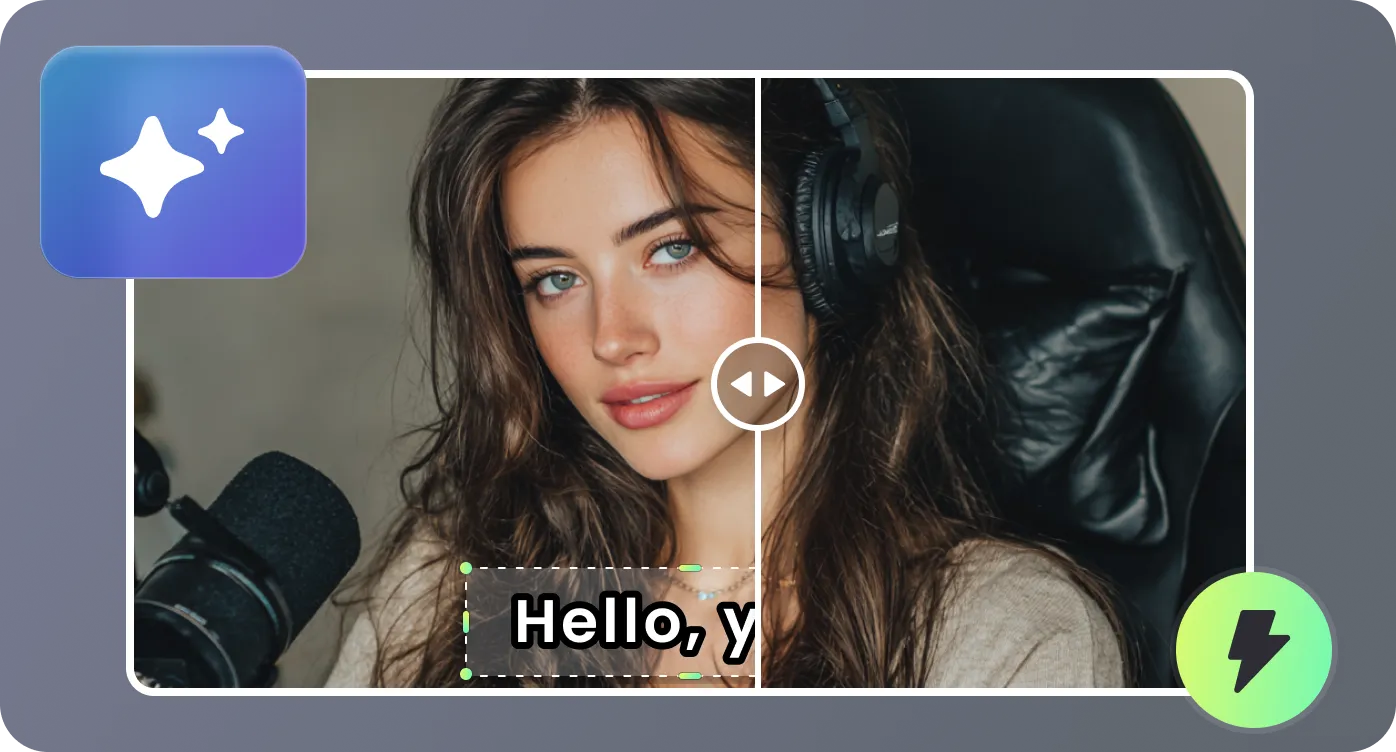
Choose between Fast and Best Quality modes based on your video complexity and output needs. Fast mode delivers quick results for simple backgrounds, while Best Quality handles motion, shadows, and layered visuals more precisely. You can switch modes anytime without changing your workflow.
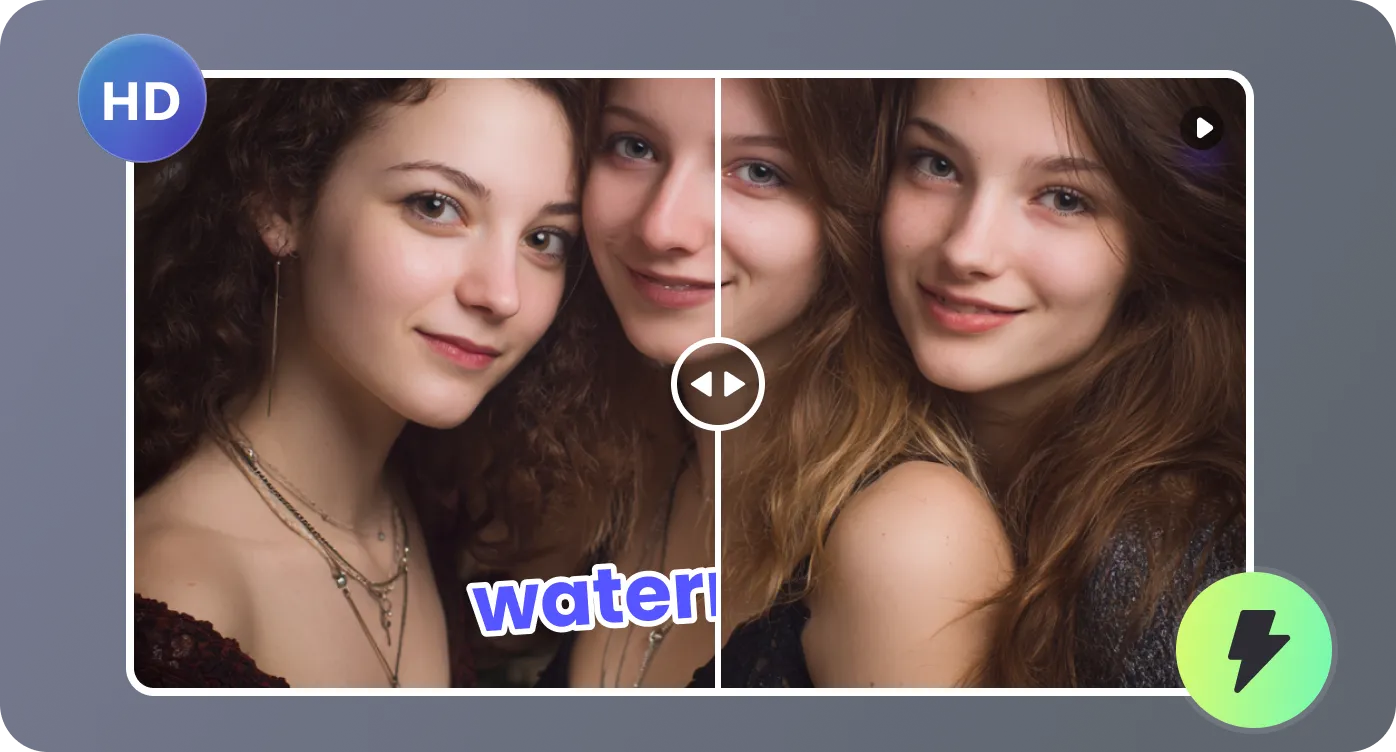
A resizable selection box lets you define exactly what should be removed from the frame. This ensures accurate processing while avoiding unnecessary changes to surrounding areas. The tighter the selection, the cleaner and more professional the final result.
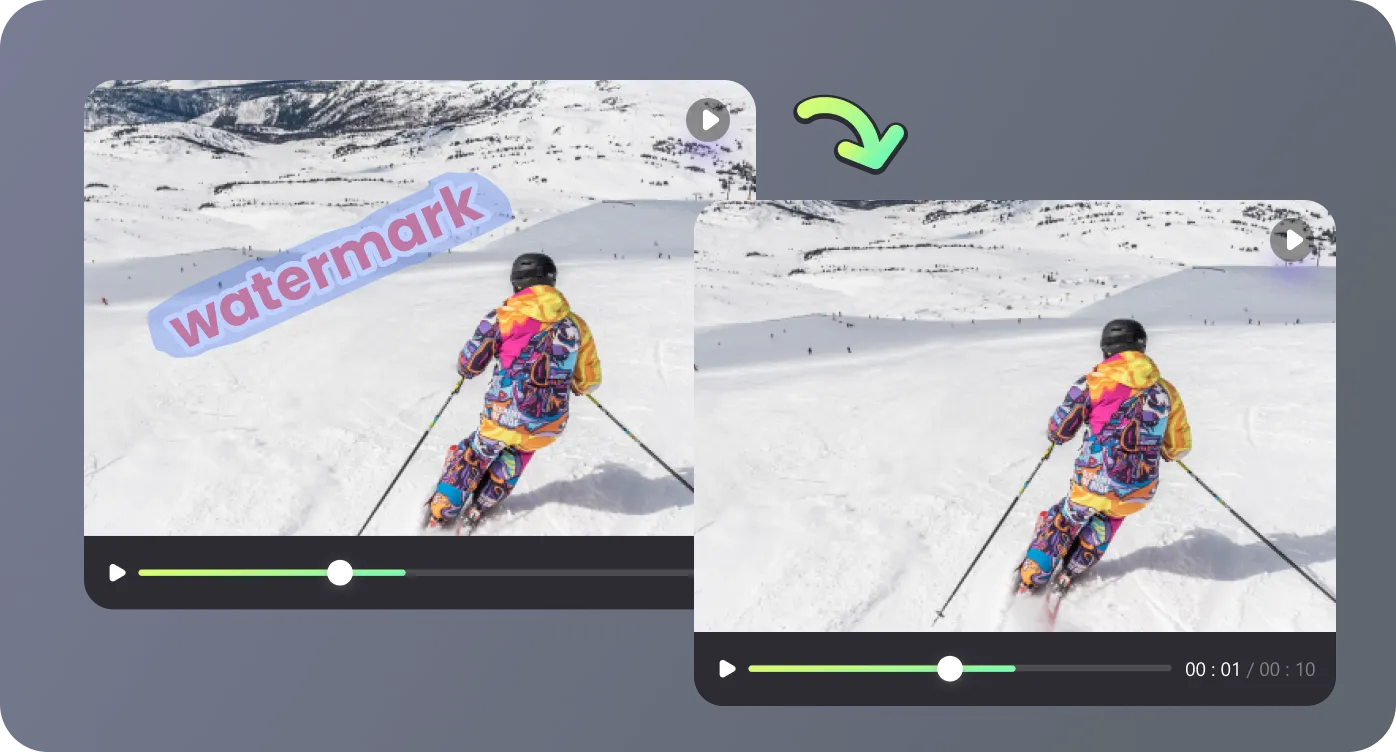
Everything runs directly in your browser with no software installation required. Upload, edit, preview, and download your video in just a few clicks. It works smoothly on any modern device, making video cleanup fast and accessible.
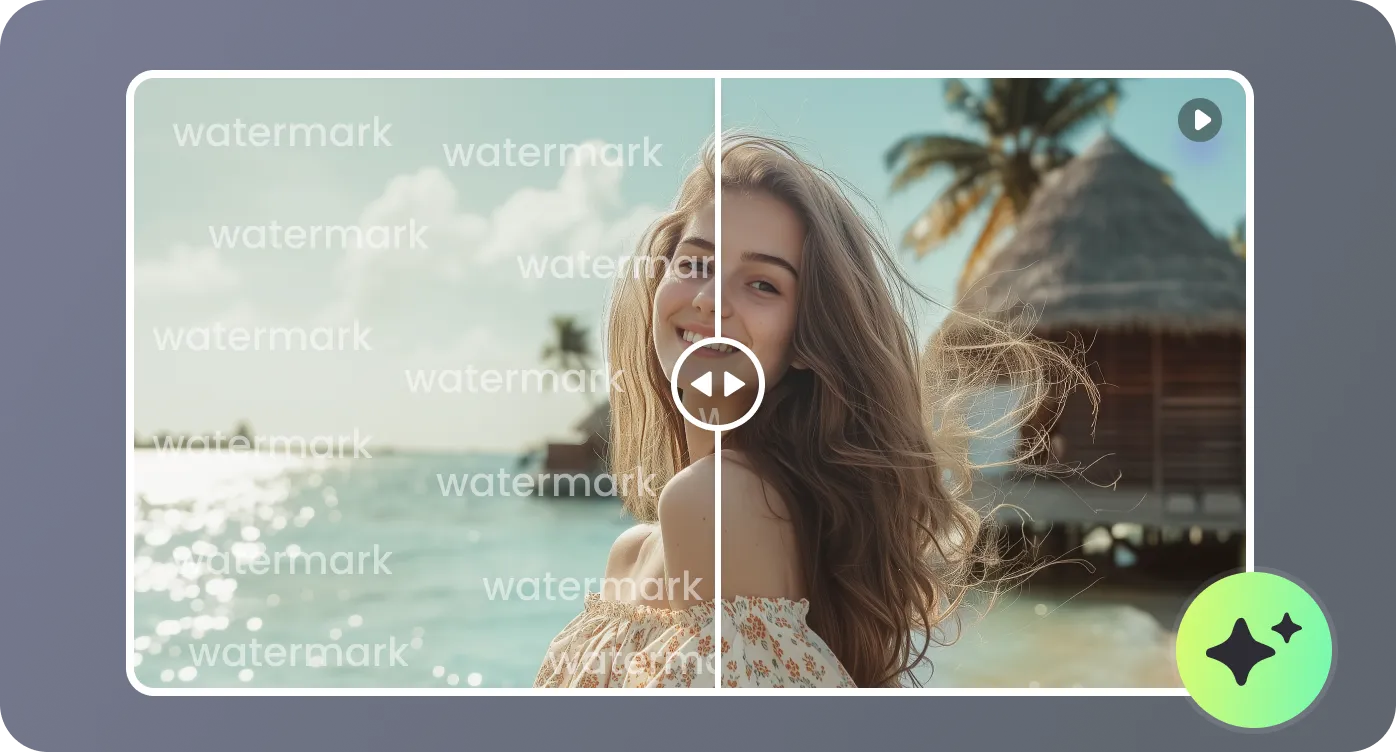
Ideal for creators, educators, and professionals needing clean video content.

I often reuse short videos across platforms, and removing built-in captions used to be a headache. This tool makes it incredibly easy to clean videos without affecting quality. The results look natural, even on busy backgrounds.

We frequently update old marketing videos, and this saves us from re-editing everything from scratch. The AI fills in removed areas surprisingly well, even with motion and lighting changes. It has become part of our regular workflow.

I use it to remove subtitles from recorded lessons before adding new translations. The process is simple, and the preview feature helps me confirm everything looks right. It saves hours compared to manual editing.

What impressed me most is how clean the final output looks. The selection box gives precise control, and the Best Quality mode handles complex scenes very well. It’s a solid tool for quick professional results.

Answers to common questions about AI-powered text removal.

