
BGM
Paste your script, choose a voice, and export an audio file ready for playback or editing.
Add Text
Paste or type your script into the editor. The system reads your text and prepares it for text to audio generation.

Choose Voice
Select a voice and playback speed that fits your content. Preview how the text to audio output sounds before exporting.
Export Audio
Generate the audio file and download it instantly. Use the voiceover in videos, presentations, podcasts, or study materials.
Create voice content from written text without recording equipment or editing software.
Generate audio that follows natural pacing and pronunciation instead of sounding mechanical. The text to audio output works well for video narration, tutorials, presentations, and spoken versions of written content such as blog posts or scripts.

Convert your script into a ready-to-use audio file you can download immediately. The generated voice track can be added directly to videos, slides, podcasts, or online courses without recording or editing your own voice.
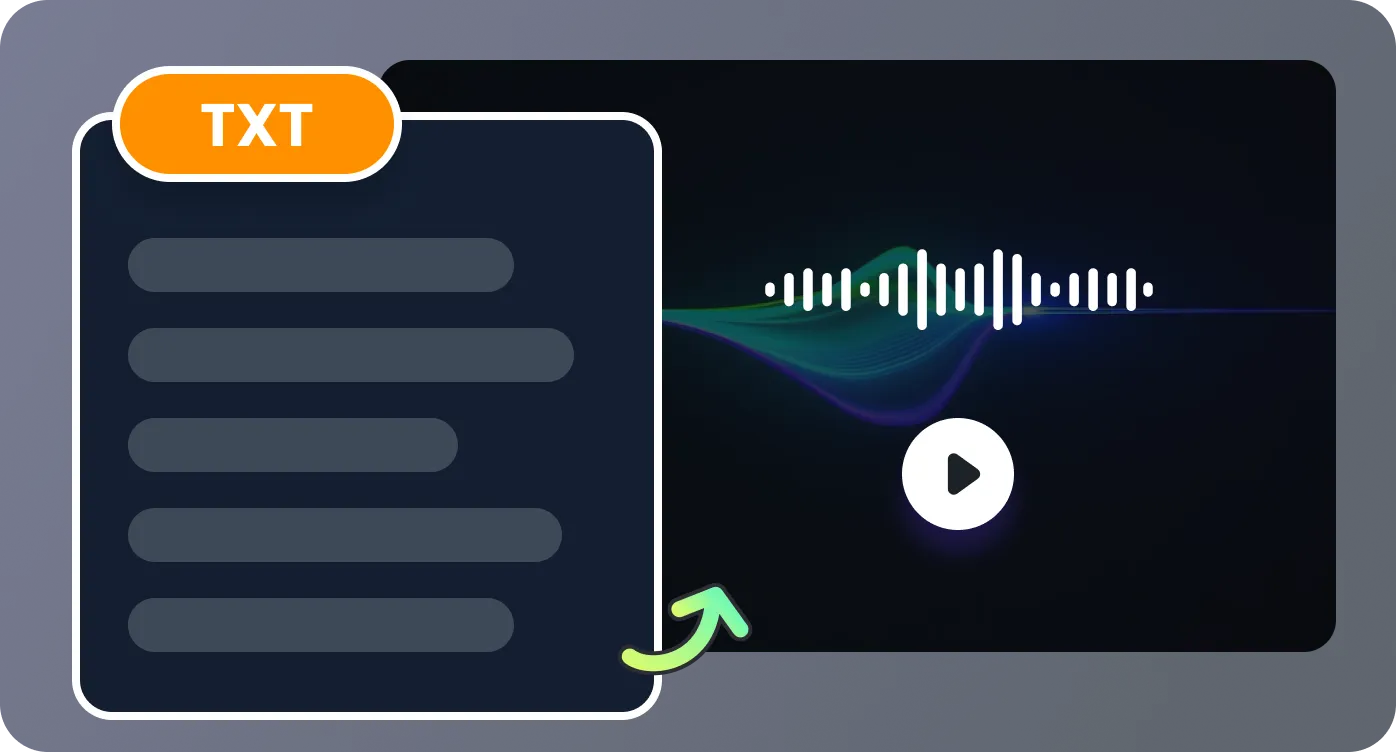
Update your text anytime and generate the audio again in seconds. This makes it easy to adjust narration, fix wording, or test different versions of a script without recording multiple takes.
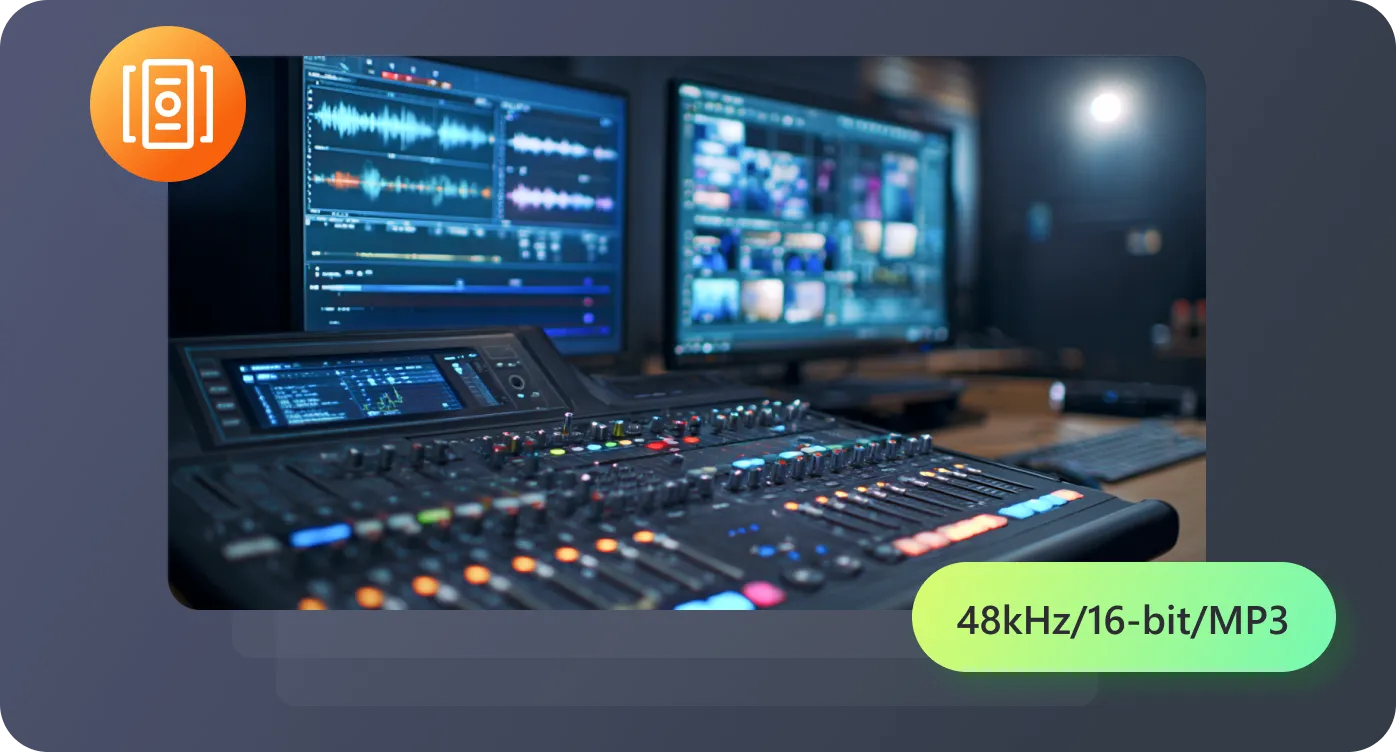
Create spoken audio using voices in different languages and speaking styles. This helps when producing content for international audiences or turning the same text into audio for different regions.
Common situations where written content needs to become spoken audio.

I run a small YouTube channel explaining personal finance topics. Before RecCloud, I had to record every script myself, which was time-consuming and tiring. With RecCloud’s text to audio tool, I can instantly generate narration that sounds natural, clear, and steady. It saves me hours each week and lets me focus on scripting and visuals.

I prepare training slides for new hires every month. Using RecCloud, I can convert all my lesson scripts into audio quickly, and the voices are professional enough that I don’t need to record anything manually. It’s especially helpful for distributing materials to remote employees who prefer listening over reading.

I often convert long research notes or lecture summaries into audio so I can listen while commuting or exercising. The text to audio tool produces clear and well-paced narration, which makes studying on the go much more efficient. I no longer need to rely on text-only notes.

I test ideas for marketing videos by turning my scripts into audio first. The generated narration helps me evaluate pacing, tone, and clarity before hiring a professional voice actor. It’s a huge time-saver and gives me confidence that the final video will sound polished.

Short answers to common questions about converting text into audio.

'%3e%3cpath%20d='M7.1%2013.4C10.4689%2013.4%2013.2%2010.6242%2013.2%207.2C13.2%203.77583%2010.4689%201%207.1%201C3.73106%201%201%203.77583%201%207.2C1%2010.6242%203.73106%2013.4%207.1%2013.4Z'%20stroke='white'%20stroke-width='2'%20stroke-miterlimit='10'%20stroke-linecap='round'%20stroke-linejoin='round'/%3e%3cpath%20d='M13.5%2012.5L15%2014'%20stroke='white'%20stroke-width='2'%20stroke-miterlimit='10'%20stroke-linecap='round'%20stroke-linejoin='round'/%3e%3c/g%3e%3cdefs%3e%3cclipPath%20id='clip0_40348_278'%3e%3crect%20width='16'%20height='15'%20fill='white'/%3e%3c/clipPath%3e%3c/defs%3e%3c/svg%3e)


'/%3e%3cpath%20d='M4%206.33333L5.38333%208L8%204'%20stroke='%232D2D33'%20stroke-linecap='round'%20stroke-linejoin='round'/%3e%3cdefs%3e%3clinearGradient%20id='paint0_linear_59564_8366'%20x1='1.38174e-07'%20y1='6'%20x2='12.2188'%20y2='7.57508'%20gradientUnits='userSpaceOnUse'%3e%3cstop%20stop-color='%23D6FB72'/%3e%3cstop%20offset='1'%20stop-color='%2376F9B1'/%3e%3c/linearGradient%3e%3c/defs%3e%3c/svg%3e)
'%20fill='white'/%3e%3cellipse%20cx='2.79998'%20cy='2.79995'%20rx='2.79998'%20ry='2.79995'%20transform='matrix(0.965927%20-0.258816%200.258823%200.965925%2018.3749%2022)'%20fill='white'/%3e%3cpath%20d='M11%2010L27.5%2026.5'%20stroke='white'%20stroke-width='2'%20stroke-linecap='round'/%3e%3c/svg%3e)
