'%20stroke-opacity='0.2'%20stroke-width='2'/%3e%3cpath%20d='M3.11592%2019.2884C1.75802%2014.0938%204.86823%208.78202%2010.0628%207.42412L31.7476%201.75552C33.7413%201.23434%2035.8588%201.49254%2037.6689%202.47756L45.1886%206.5697C47.5462%207.85267%2049.2684%2010.0533%2049.9473%2012.6501L57.5913%2041.8917C58.9492%2047.0862%2055.839%2052.398%2050.6444%2053.7559L23.9954%2060.7222C18.8008%2062.0801%2013.489%2058.9699%2012.1311%2053.7754L3.11592%2019.2884Z'%20stroke='url(%23paint1_linear_54018_1330)'%20stroke-width='4'/%3e%3cpath%20d='M3.1208%2019.2884C1.7629%2014.0938%204.87311%208.78202%2010.0677%207.42412L31.7524%201.75552C33.7462%201.23434%2035.8636%201.49254%2037.6737%202.47756L45.1935%206.5697C47.5511%207.85267%2049.2733%2010.0533%2049.9522%2012.6501L57.5962%2041.8917C58.9541%2047.0862%2055.8439%2052.398%2050.6493%2053.7559L24.0002%2060.7222C18.8057%2062.0801%2013.4939%2058.9699%2012.136%2053.7754L3.1208%2019.2884Z'%20fill='%235B5B5B'/%3e%3cpath%20d='M31.7516%201.75597C33.7454%201.23478%2035.8633%201.49203%2037.6734%202.47705L45.1931%206.5696C47.505%207.82776%2049.2028%209.96938%2049.9079%2012.5007L41.6862%2014.6499C38.2233%2015.5551%2034.6819%2013.4821%2033.7765%2010.0193L31.625%201.78906L31.7516%201.75597Z'%20fill='%23CEFFD2'%20fill-opacity='0.3'/%3e%3cpath%20d='M38.6744%2029.5512C40.6539%2030.0946%2041.3029%2032.5771%2039.8425%2034.0198L31.0802%2042.6757C29.6198%2044.1184%2027.1453%2043.4391%2026.6261%2041.4531L23.5111%2029.5367C22.9919%2027.5506%2024.8174%2025.7473%2026.7969%2026.2907L38.6744%2029.5512Z'%20fill='url(%23paint2_linear_54018_1330)'/%3e%3cdefs%3e%3clinearGradient%20id='paint0_linear_54018_1330'%20x1='14.2197'%20y1='34.6499'%20x2='62.8873'%20y2='40.1141'%20gradientUnits='userSpaceOnUse'%3e%3cstop%20stop-color='%23D6FB72'/%3e%3cstop%20offset='1'%20stop-color='%2376F9B1'/%3e%3c/linearGradient%3e%3clinearGradient%20id='paint1_linear_54018_1330'%20x1='7.62353'%20y1='36.5319'%20x2='55.4562'%20y2='29.4896'%20gradientUnits='userSpaceOnUse'%3e%3cstop%20stop-color='%23D6FB72'/%3e%3cstop%20offset='1'%20stop-color='%2376F9B1'/%3e%3c/linearGradient%3e%3clinearGradient%20id='paint2_linear_54018_1330'%20x1='30.5755'%20y1='24.9296'%20x2='32.6408'%20y2='42.908'%20gradientUnits='userSpaceOnUse'%3e%3cstop%20stop-color='%23D6FB72'/%3e%3cstop%20offset='1'%20stop-color='%2376F9B1'/%3e%3c/linearGradient%3e%3c/defs%3e%3c/svg%3e)
Drag and Drop files to upload or
'%20stroke='%232D2D33'%20stroke-width='3'/%3e%3cpath%20d='M9.86621%2012.8366L13.9744%208.91127L18.1435%2012.8976M13.8403%209.92308L13.9134%2019.0781'%20stroke='%232D2D33'%20stroke-width='3'%20stroke-linecap='round'%20stroke-linejoin='round'/%3e%3c/svg%3e) Browse
BrowseFollow three clear steps to turn any YouTube video into accurate text, customize subtitles visually.
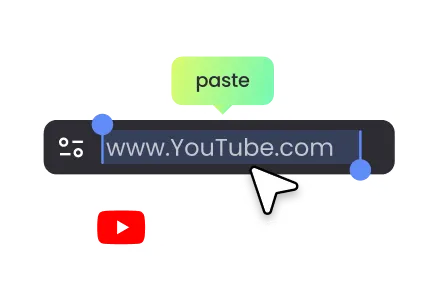
Paste Link
Paste your YouTube or Shorts link into the main input field and click "Show My Transcript" to start automatic transcription.
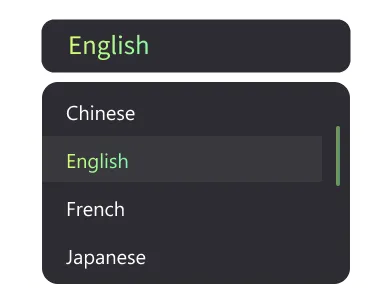
Choose Language
Auto-detect or translate to 100+ languages. Switch between single/bilingual subtitles, confirm your language, and generate perfectly paired on-screen text.
Edit and Export
Edit text, timing, and styling in the timeline with real-time preview. Export as MP4 with burned-in subtitles or download SRT files for other editors and players.
Automated YouTube transcription with precise editing and flexible export options.
Go from YouTube link to full transcript without uploading heavy video files or waiting on complex setups. Automatic transcription starts as soon as you hit "Show My Transcript", while the progress bar keeps you informed. It works equally well for standard videos and Shorts, giving you a consistent, reliable pipeline every time.
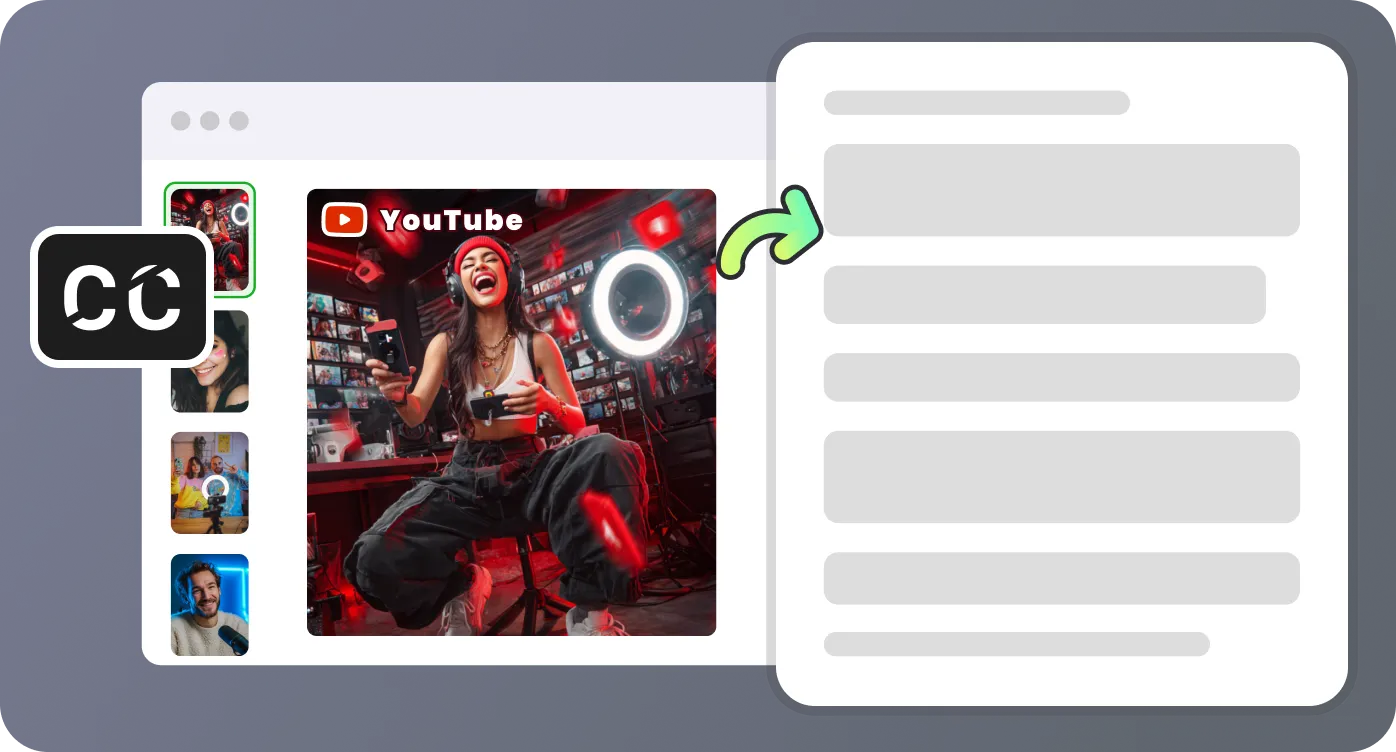
Fine‑tune every subtitle line using precise timecodes that stay synced with playback. Edit text, add or delete lines, and see changes reflected instantly in the embedded player, complete with speed controls and a real‑time subtitle highlight. This visual feedback makes pacing, readability, and accuracy far easier to perfect than working blindly in plain text.
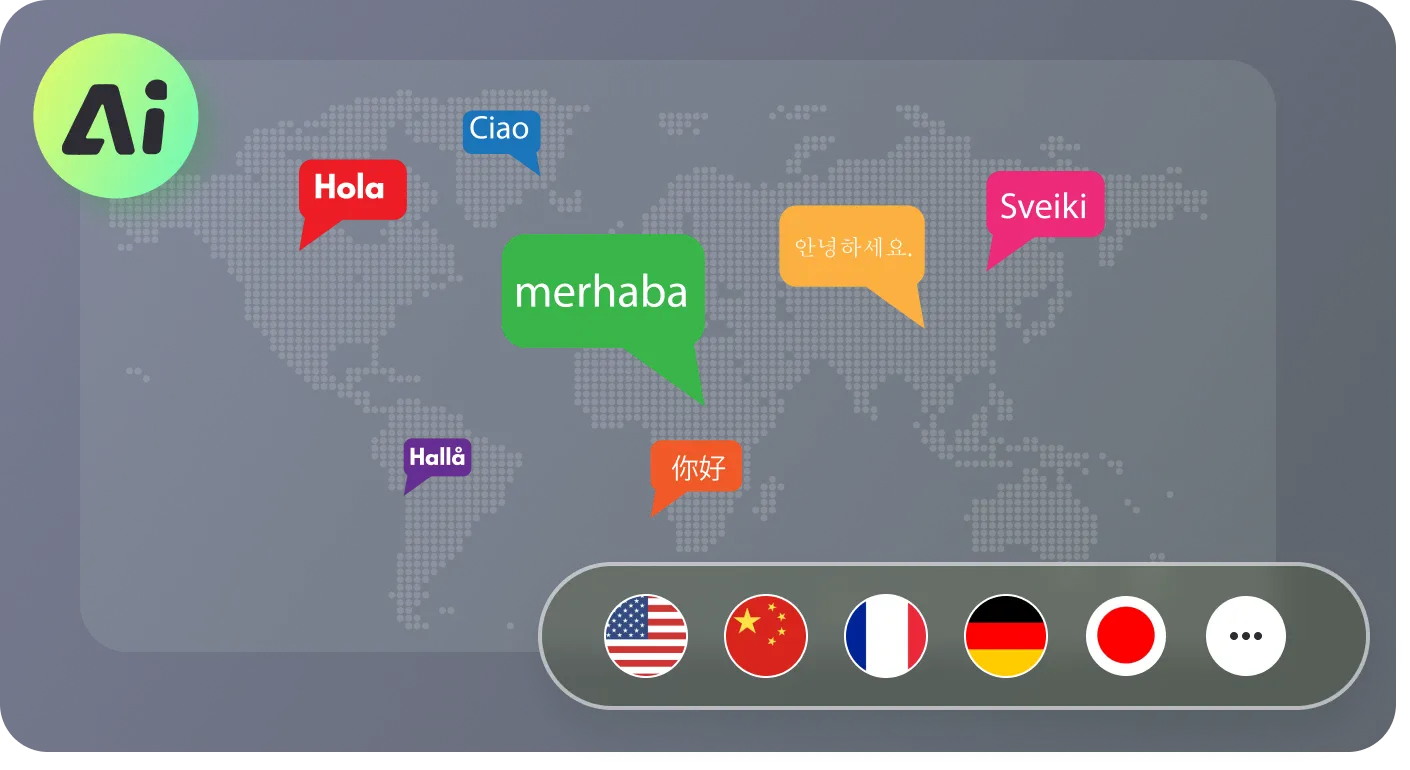
Keep your original language, let the tool auto detect, or translate directly into several major languages from one place. Toggle between single and bilingual subtitles so both original and translated text appear together on screen. This flexibility is ideal for multilingual audiences, international courses, or creators localizing their content efficiently.
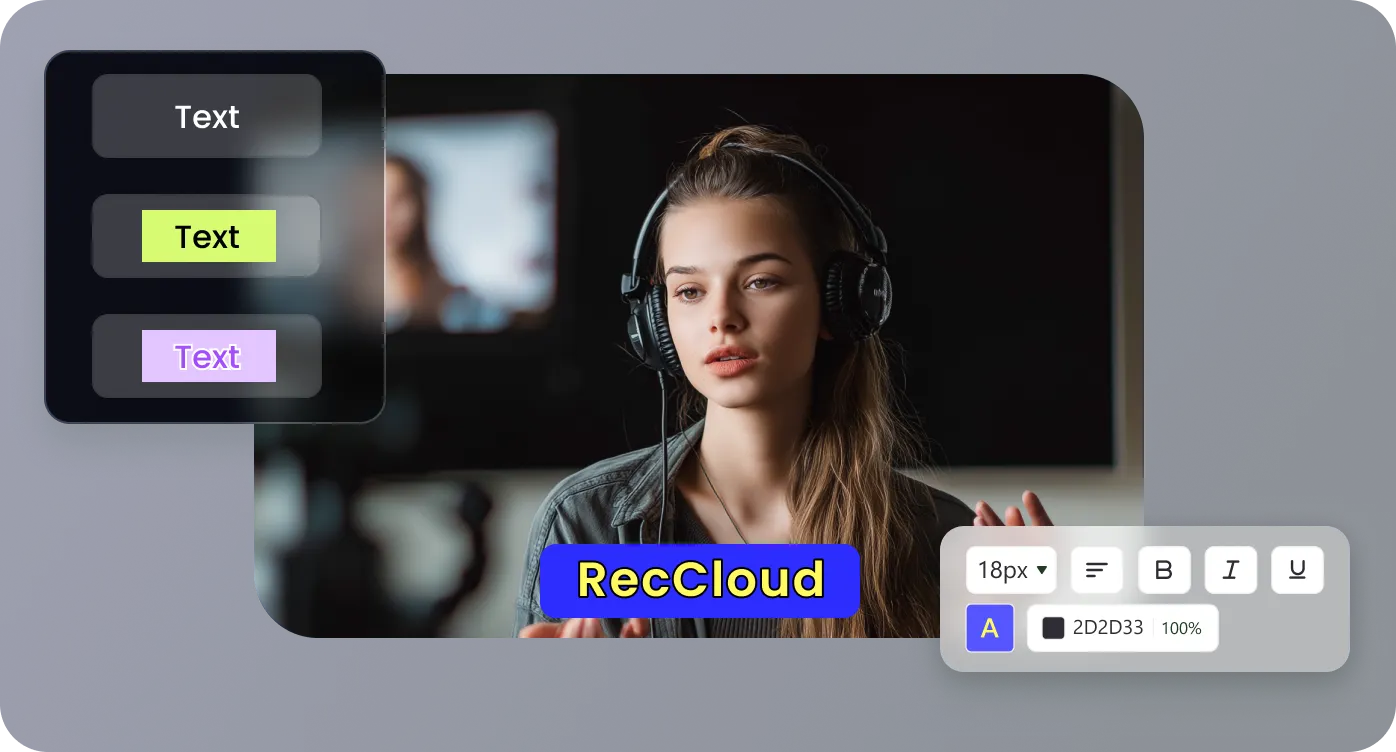
Control font, color, size, background, outline, alignment, and position so subtitles match your brand or viewing environment. Apply preset styles in one click or customize everything before exporting. Choose between a ready‑to‑share MP4 with burned‑in subtitles or a clean SRT file you can use in editors like Premiere, Final Cut, or players like VLC.
Use this tool for content creation, education, marketing, and accessibility—fast and polished.

As someone who repurposes YouTube content into blogs and newsletters, this YouTube video transcriber has changed my workflow completely. I paste the link, let it auto‑transcribe, then quickly refine the wording before exporting the text. The ability to copy the entire transcript in one click saves me from hours of manual typing and rough draft cleanup.

I post long tutorials and lecture‑style videos, so accurate captions are essential for my students. Being able to transcribe YouTube video to text and edit subtitles directly in a synced timeline is incredibly efficient. I especially appreciate the translation choices and bilingual subtitles, which help my international audience follow along in both the original language and English.

We use this tool to turn product walk‑throughs and launch videos into multilingual assets quickly. The YouTube video to text transcription is accurate enough to start from, and the Find & Replace feature lets us enforce consistent terminology in seconds. Exporting subtitled MP4s with our chosen fonts and colors makes it easy to publish polished, on‑brand content across different regions.

As a solo creator, I need tools that give me control without adding complexity. This YouTube video transcriber lets me fix timing, tweak phrasing, and style captions while watching the video play. Once I am satisfied, I export either an SRT file for further editing or a final MP4 with burned‑in subtitles that I can upload immediately without extra software.

Find clear answers on how to transcribe YouTube videos to text and export subtitles smoothly.

